Immediate Fix
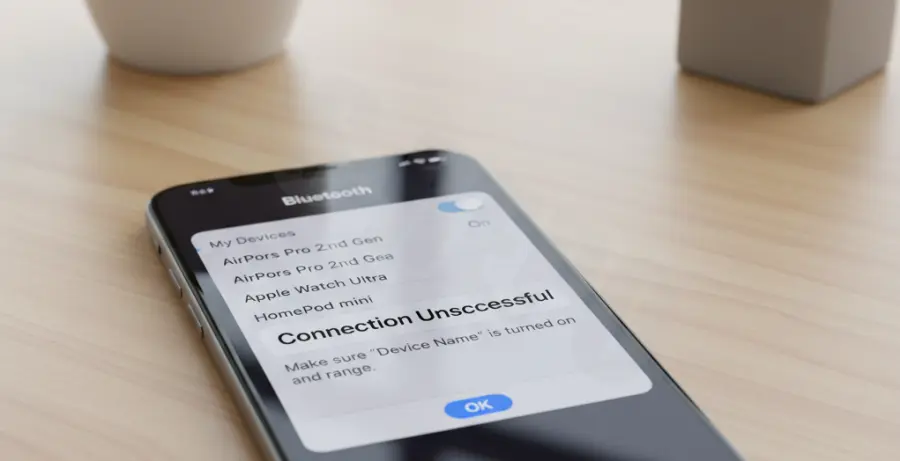
If your iPhone 16 Pro is failing to pair with Bluetooth devices, the fastest solution is a hard toggle of the Bluetooth stack and a device refresh.
Navigate to Settings > Bluetooth, toggle the switch to Off, wait ten seconds, and toggle it back On. If the device is already listed but won’t connect, tap the “i” icon next to the device name and select Forget This Device.
| Method | Success Rate | Action Required |
|---|---|---|
| Toggle Bluetooth | High | Settings > Bluetooth > Toggle |
| Forget Device | Very High | Settings > “i” > Forget |
| Reset Network Settings | Critical | Settings > General > Transfer or Reset |
Technical Explanation
Bluetooth pairing on the iPhone 16 Pro relies on the latest iOS 18 communication protocols. Pairing failures usually occur due to a “handshake timeout” or a corrupted cache in the local discovery plist files.
When the software stack fails to exchange security keys with the peripheral, the connection is dropped. This is often exacerbated by 2.4GHz frequency interference or legacy firmware on the accessory being paired.
Developers often use the following bash simulation to diagnose network stack responsiveness during testing phases:
# Simulating a network stack reset for pairing logs
sudo killall -9 bluetoothd
echo "Bluetooth stack restarted. Monitoring pairing handshakes..."
tail -f /var/log/bluetooth.log
Alternative Methods
If basic toggling fails, you must perform a Force Restart. Quickly press and release Volume Up, then Volume Down, and hold the Side Button until the Apple logo appears. This clears the hardware cache.
Check for Interference
Move away from Wi-Fi routers and unshielded cables. The iPhone 16 Pro uses sensitive antennas that can be overwhelmed by dense electromagnetic environments.
Update Firmware
Ensure your iPhone 16 Pro is running the latest version of iOS. Apple frequently releases “dot” updates (e.g., iOS 18.0.1) specifically to address connectivity bugs found in new hardware releases.
Reset Network Settings
As a final resort, go to Settings > General > Transfer or Reset iPhone > Reset > Reset Network Settings. Note that this will also delete your saved Wi-Fi passwords.