| Possible Cause | Recommended Fix |
|---|---|
| Apple Server Down | Check Apple System Status page |
| Incorrect Date/Time | Enable “Set Automatically” in Settings |
| Network Conflict | Reset Network Settings |
| Apple ID Glitch | Sign out and back into iCloud |
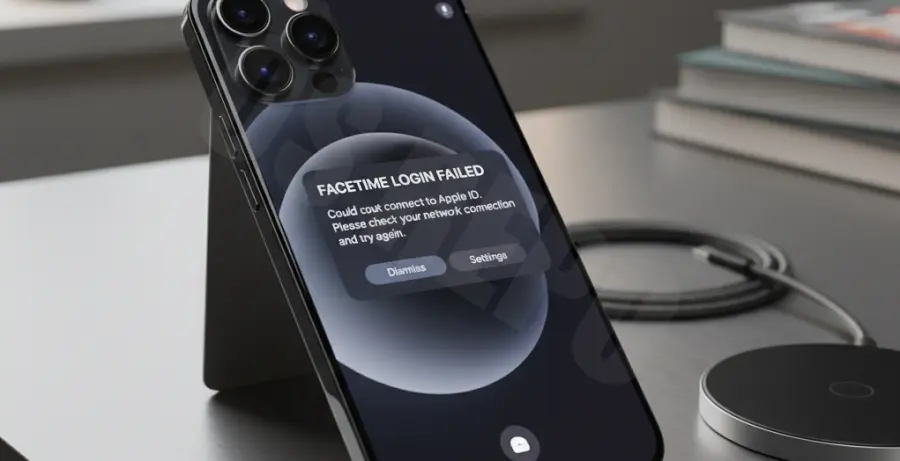
What is the iPhone 16 Pro FaceTime Sign In Error?
The iPhone 16 Pro FaceTime sign in error typically occurs during the initial device setup or after a major iOS update. It manifests as a “Could not sign in” message or a perpetual loading spinner.
This error prevents users from activating their Apple ID for video calls. It usually stems from a communication failure between the device and Apple’s authentication servers.
Factors like incorrect region settings, outdated firmware, or unstable Wi-Fi connections often trigger this problem. Even on the high-performance iPhone 16 Pro, software handshakes can occasionally fail.
Step-by-Step Solutions
1. Check Apple System Status
Before changing settings, ensure Apple’s servers are operational. Sometimes, FaceTime or iCloud services experience regional outages.
2. Verify Date and Time Settings
FaceTime requires precise time synchronization for security certificates. If your clock is off by even a minute, the sign-in will fail.
Navigate to Settings > General > Date & Time. Ensure that Set Automatically is toggled to ON.
3. Reset Network Configuration
If your internet connection is active but FaceTime still fails, clear your network cache. This removes saved Wi-Fi passwords and reset cellular configurations.
# Standard iOS Troubleshooting Logic:
# 1. Open Settings
# 2. Tap General
# 3. Tap Transfer or Reset iPhone
# 4. Tap Reset
# 5. Select "Reset Network Settings"
4. Update iOS Firmware
The iPhone 16 Pro frequently receives “Day 1” patches to fix activation bugs. Check for updates under Settings > General > Software Update.
Installing the latest version of iOS 18 often contains the specific handshake fix required for FaceTime activation.
5. Sign Out of Apple ID
Sometimes the local authentication token is corrupted. Refreshing your login can force a new connection to the FaceTime servers.
Go to Settings > [Your Name] > Sign Out. Restart your iPhone 16 Pro, then sign back in and attempt to toggle FaceTime in the app settings.