| Feature | Details |
|---|---|
| Error Code | 1618 (ERROR_INSTALL_ALREADY_RUNNING) |
| Root Cause | The Windows Installer (msiexec.exe) is already processing another installation or update. |
| Quick Fix | End the “Windows Installer” process in Task Manager or restart your computer. |
| Platforms Affected | Windows 10, Windows 11, Windows Server |
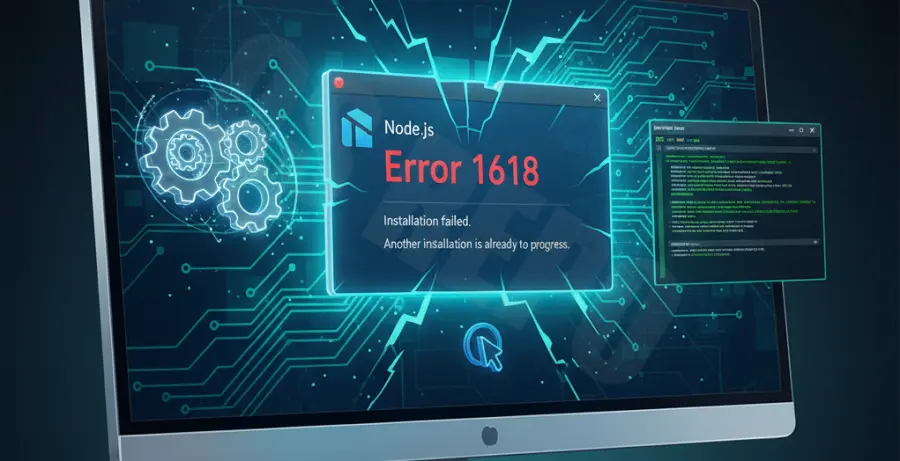
What is Node.js Installation Error 1618?
Node.js installation error 1618 is a standard Windows Installer (MSI) error code. It indicates that “another installation is already in progress.”
Windows only allows one installation using the Microsoft Installer service (msiexec.exe) at a time. If you try to run the Node.js installer while Windows is updating in the background or another software is being installed, the process will fail.
This error often occurs if a previous installation crashed or didn’t close properly. It can also be triggered by automatic Windows Updates running silently in the background.
Step-by-Step Solutions
Method 1: Kill the Windows Installer Process
The most direct way to fix this is to stop the installer process manually. This forces the “lock” on the installation service to release.
- Press Ctrl + Shift + Esc to open the Task Manager.
- Click on the Details tab.
- Look for
msiexec.exein the list. - Right-click it and select End Task.
- If there are multiple instances, end all of them.
Method 2: Restart the Windows Installer Service
Sometimes the service gets stuck in a “pending” state. Restarting the service via the command line can reset the status.
Open Command Prompt as Administrator and run these commands:
net stop msiserver
net start msiserver
Once the service restarts, try running the Node.js .msi file again.
Method 3: Clear Temporary Files
Residual installation files in the temp folder can sometimes trick the Windows Installer into thinking a process is still active.
- Press Win + R, type
%temp%, and hit Enter. - Select all files (Ctrl + A) and delete them.
- Skip any files that are currently in use.
Method 4: Check for Windows Updates
If Windows is currently downloading or installing a system update, it will block the Node.js installation. Go to Settings > Windows Update and check if an update is currently being applied. If so, wait for it to finish and restart your PC before attempting the Node.js setup again.
Method 5: Reboot Your Computer
If all else fails, a full system reboot is the most reliable way to clear the error 1618. This terminates all hidden background processes and refreshes the Windows Installer service state.