Symptoms & Diagnosis
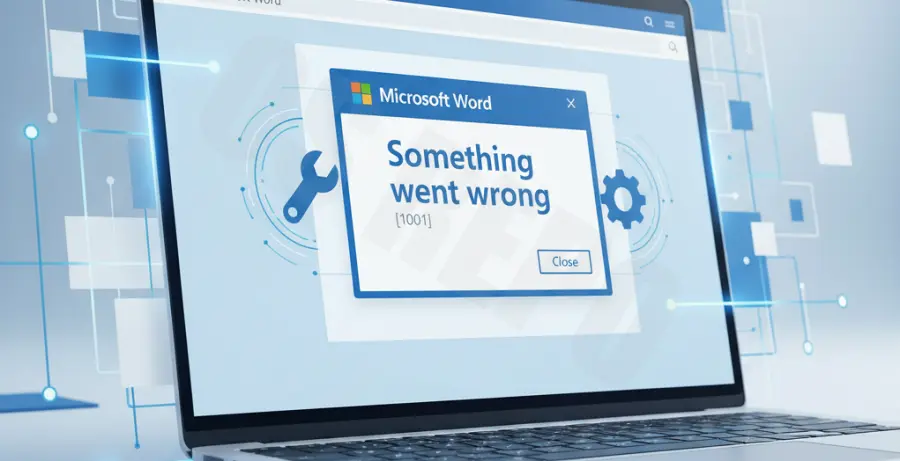
Microsoft Office 365 Error 1001 is a common authentication failure that typically occurs when the Web Account Manager (WAM) plug-in encounters a configuration issue. Users often see a dialogue box stating, “Something went wrong. [1001]” or “Your account settings are out of date.”
The primary symptoms include blank sign-in windows, repeating login loops in Word or Outlook, and the inability to activate Office licenses. This usually stems from a corrupted user profile folder or a mismatch in cached credentials.
| Symptom | Likely Cause |
|---|---|
| Blank Sign-in Screen | WAM Plugin failure or network blocking. |
| Error 1001 code | Corrupted identity folder in LocalAppData. |
| Persistent Login Loop | Stale credentials in Windows Credential Manager. |
Troubleshooting Guide
To resolve the Office 365 sign-in error 1001, follow these steps in sequence. These methods address the most common points of failure in the Microsoft authentication stack.
Method 1: Disconnect and Reconnect Work/School Account
Often, the Windows OS loses sync with the Office identity provider. Resetting this connection can clear the error.
Navigate to Settings > Accounts > Access work or school. Find the account you are using, select Disconnect, and then restart your computer. After rebooting, sign back in via the same menu.
Method 2: Clear the WAM Cache Folder
If the error persists, the local authentication folders may be corrupted. You can clear the WAM (Web Account Manager) data using a PowerShell command to reset the identity provider’s local state.
if (Test-Path "$env:LOCALAPPDATA\Packages\Microsoft.AAD.BrokerPlugin_cw5n1h2txyewy") {
    Remove-Item -Path "$env:LOCALAPPDATA\Packages\Microsoft.AAD.BrokerPlugin_cw5n1h2txyewy" -Recurse -Force
}
Note: Close all Office applications before running this command. You may need to take ownership of the folder if you encounter “Access Denied” errors.
Method 3: Repair Office Installation
Corruption within the Office binaries themselves can trigger 1001 errors. Perform an Online Repair to ensure all components are functional.
Go to Control Panel > Programs and Features. Right-click Microsoft 365 and select Change. Choose Online Repair and follow the prompts.
Prevention
To prevent Error 1001 from recurring, ensure that your Windows operating system is always up to date. Microsoft frequently releases patches for the AAD BrokerPlugin and WAM components via Windows Update.
Avoid using third-party “PC cleaners” that target system folders, as they may accidentally delete essential authentication tokens. Additionally, ensure that your firewall or VPN is not blocking traffic to *.microsoftonline.com or *.office.com.
Lastly, regularly clear your browser cache if you use Office on the web, as stale cookies can sometimes interfere with the desktop application’s authentication handshake.