| Issue | Severity | Time to Fix |
|---|---|---|
| Pixel 9 Play Store Download Error | Medium | 5–10 Minutes |
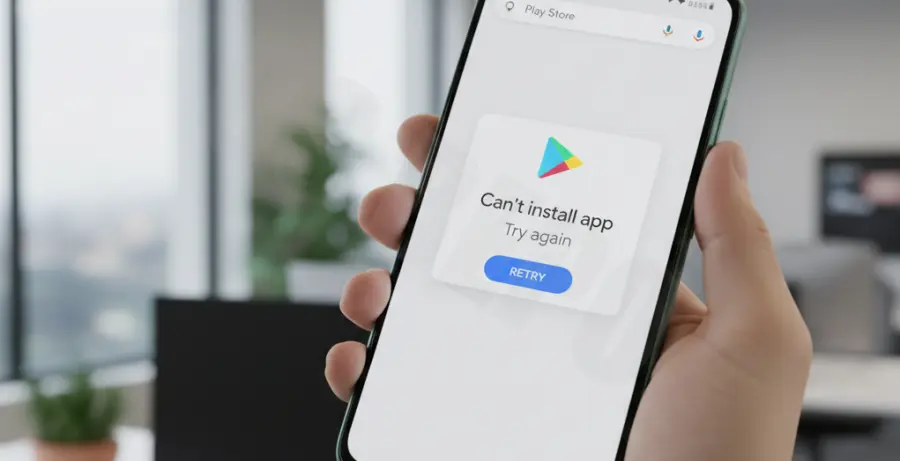
What is pixel 9 app store unable to install app?
This error refers to a specific failure on the Google Pixel 9 where the Play Store hangs during the “Installing” phase or displays an error code. It is often caused by corrupted system cache, account sync conflicts, or pending OS updates.
Step-by-Step Solutions to Fix Pixel 9 Installation Issues
1. Clear Play Store Cache and Data
Most installation errors are tied to temporary files. Clearing the cache forces the Google Play Store to refresh its database and connection to Google servers.
- Open Settings and tap on Apps.
- Select See all apps and find Google Play Store.
- Tap Storage & cache and select Clear Cache, then Clear Storage.
2. Force Stop and Restart the Service
Sometimes the background process for the installer becomes unresponsive. Use the following command logic or manual steps to restart the process.
# Manual steps simulated via ADB if needed
adb shell am force-stop com.android.vending
adb shell pm clear com.android.vending
3. Check for System Updates
The Pixel 9 may require a specific security patch to resolve compatibility issues with the Play Store. Ensure your device is running the latest build.
- Go to Settings > System.
- Tap on Software updates.
- Select System update and install any pending versions.
4. Reset Google Account Sync
If the error persists, your Google account might have a sync conflict. Removing and re-adding the account often re-establishes a clean handshake with the app store.
Navigate to Settings > Passwords & accounts. Select your Google account, tap Remove account, and then add it back via the same menu.