| Issue | Quick Fix | Success Rate |
|---|---|---|
| Setup Failed Error | Install System Updates | High |
| “Something went wrong” | Clear Private Compute Services Cache | Medium |
| Face Not Recognized | Clean Top Bezel / Remove Screen Protector | High |
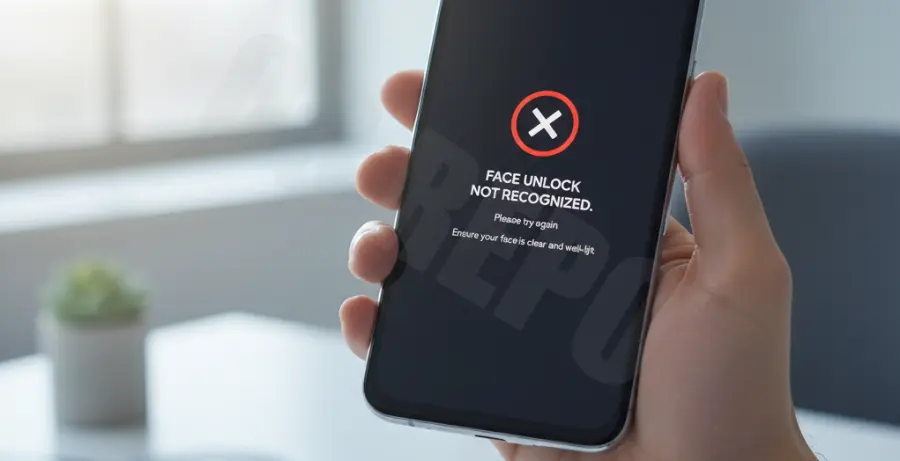
What is the Pixel 9 Face Unlock Setup Error?
The Pixel 9 face unlock setup error is a common glitch where the device fails to register facial data during the initial configuration. Users often see a “Something went wrong” message or a generic error code.
This issue usually stems from outdated system software, environmental lighting problems, or corrupted cache files within the Android Private Compute Services. It prevents the Class 3 biometric security from initializing correctly.
Step-by-Step Solutions
1. Check for System Updates
Google frequently releases “Day 1” patches to fix biometric bugs. Before trying complex fixes, ensure your Pixel 9 is on the latest firmware.
Go to Settings > System > Software updates > System update. Tap “Check for update” and install any pending packages. Restart your device after installation.
2. Clear Biometric Cache via ADB
If the UI fails to clear the setup data, you can use ADB commands to reset the service responsible for processing facial recognition data. This often resolves “Something went wrong” loops.
adb shell pm clear com.google.android.as
adb reboot
This command clears the Private Compute Services cache, which manages the local AI models used for Face Unlock on Pixel devices.
3. Clean the Camera and Sensors
The Pixel 9 uses the front-facing camera for its secure face unlock. Any smudge or oily residue on the top of the screen can distort the depth mapping.
Use a clean microfiber cloth to wipe the top bezel thoroughly. If you are using a third-party screen protector that does not have a cutout for the camera, it may be causing the setup error.
4. Reset Factory Biometric Data
Sometimes the initial “Face Model” becomes corrupted during the first attempt. You need to wipe the existing partial data before trying again.
Navigate to Settings > Security & privacy > Device unlock > Face & Fingerprint Unlock. If a face is already partially registered, delete it and tap “Start” to begin a fresh enrollment in a well-lit room.
5. Toggle Developer Options
Some users report that toggling the sensor security settings in Developer Options fixes the hangup during enrollment.
Enable Developer Options by tapping “Build Number” seven times in About Phone. Then, ensure “Sensors Off” is not enabled in the Quick Settings developer tiles.