| Issue | Quick Fixes |
|---|---|
| PowerPoint Freezing | Force quit via Task Manager and restart. |
| Add-in Conflicts | Open in Safe Mode and disable third-party add-ins. |
| Corrupt Installation | Run the “Online Repair” tool from Control Panel. |
| Outdated Software | Check for Windows and Office updates. |
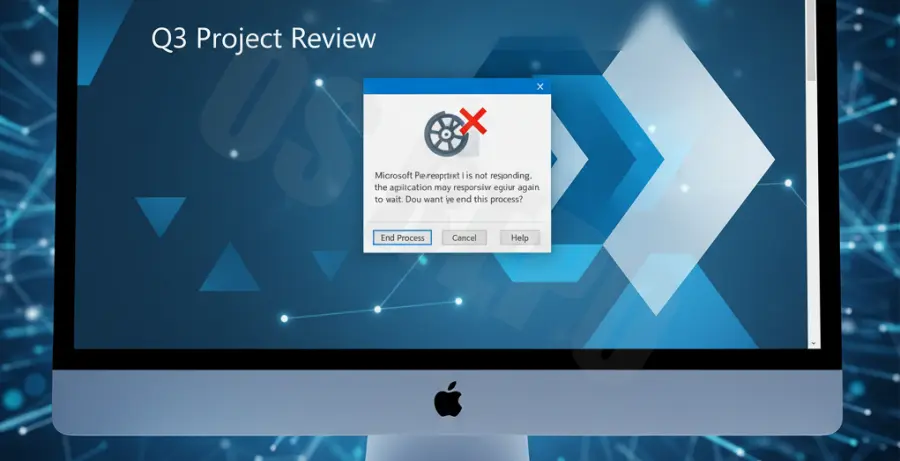
What is PowerPoint Not Responding?
The “PowerPoint Not Responding” error occurs when the application hangs or freezes during use. This usually results in the window becoming translucent, and a “Not Responding” message appearing in the title bar.
This issue typically arises when PowerPoint is overwhelmed by a specific task, such as loading a large video file. It can also be caused by conflicting background processes, corrupt add-ins, or an outdated version of Microsoft Office.
When this happens, the software stops communicating with the Windows operating system. Understanding whether the freeze is temporary or permanent is the first step toward a successful fix.
Step-by-Step Solutions
1. Force Quit and Restart
If the program is completely frozen, you must end the process manually. Press Ctrl + Shift + Esc to open the Task Manager.
Locate “Microsoft PowerPoint” in the list, right-click it, and select End Task. Relaunch the application to see if the issue persists.
2. Launch PowerPoint in Safe Mode
Safe Mode allows you to open PowerPoint without loading any add-ins or extensions. This helps determine if a third-party tool is causing the crash.
Press the Windows Key + R, type the following command, and press Enter:
powerpnt /safeIf it opens correctly in Safe Mode, the problem is likely an add-in.
3. Disable COM Add-ins
If Safe Mode worked, you should disable your add-ins one by one. Go to File > Options > Add-ins.
At the bottom of the window, select COM Add-ins from the “Manage” dropdown and click Go. Uncheck all items and restart PowerPoint normally.
4. Repair Microsoft Office
A corrupt installation often leads to stability issues. You can use the built-in repair tool to fix system files without losing your data.
Go to Control Panel > Programs > Programs and Features. Right-click “Microsoft Office” and select Change. Choose Online Repair and follow the prompts.
5. Check for File Conflicts
Sometimes, antivirus software or another program is trying to access the PowerPoint file at the same time you are. Ensure no other applications are using the file.
Try saving a copy of the presentation to your local drive instead of a network share or cloud drive to see if the “Not Responding” error resolves.