Symptoms & Diagnosis
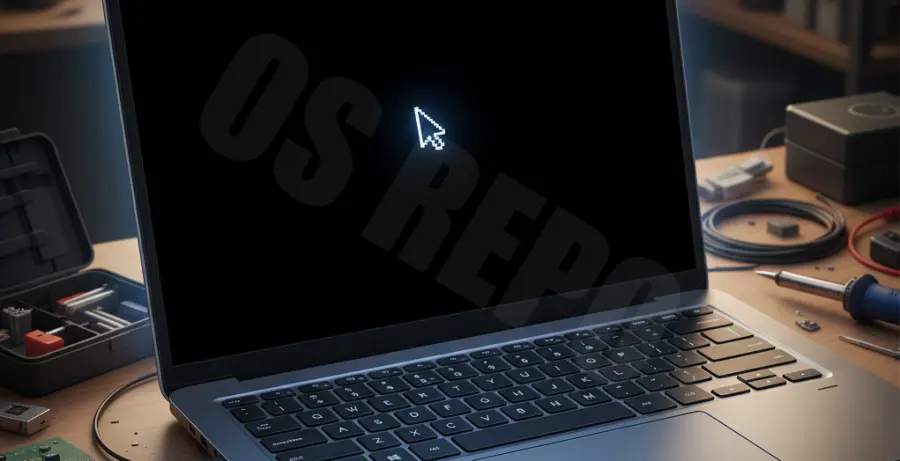
Ubuntu 24.04 “Noble Numbat” introduced a new feature: the systemd-based Blue Screen of Death (BSOD) that displays error messages when the system fails to boot. However, many users report a secondary issue where, after the blue screen, the system transitions to a black screen with only a visible, movable cursor.
This state indicates that the Linux kernel has successfully loaded and the Display Manager (usually GDM3) has attempted to start, but the graphical user interface (GNOME Shell) failed to initialize. This is commonly caused by driver conflicts, corrupted configuration files, or exhausted disk space.
| Symptom | Likely Root Cause |
|---|---|
| Movable Cursor on Black Screen | GDM is active, but the Desktop Environment crashed. |
| Frozen Cursor | Kernel panic or hardware lockup. |
| BSOD followed by Black Screen | Systemd-bsod caught a boot error; graphics failed to recover. |
Troubleshooting Guide
To fix the Ubuntu 24.04 black screen, you must bypass the broken graphical interface and use the terminal. Follow these steps in order.
1. Switch to TTY (Terminal Mode)
Since the GUI is unresponsive, press Ctrl + Alt + F3 (or F4 through F6) on your keyboard. This will open a full-screen terminal. Log in with your standard Ubuntu username and password.
2. Free Up Disk Space
A 100% full system drive is a frequent cause of the black screen with cursor. Check your disk usage with this command:
df -hIf the “/” or “/home” partitions are at 100%, clear your package cache to make room:
sudo apt clean
sudo apt autoremove
3. Fix Broken Packages and Updates
The transition from a BSOD to a black screen often means a system update was interrupted. Run the following to repair the package manager:
sudo dpkg --configure -a
sudo apt update
sudo apt full-upgrade -y
4. Reinstall the Display Manager
If the GNOME Display Manager (GDM3) configuration is corrupted, reinstalling it can reset the graphical stack:
sudo apt install --reinstall gdm3 ubuntu-desktop
sudo systemctl restart gdm
5. Troubleshooting NVIDIA Drivers
If you are using an NVIDIA GPU, the driver might be incompatible with the Ubuntu 24.04 kernel. Try removing the proprietary drivers to fall back to the open-source Nouveau driver:
sudo apt purge 'nvidia-*'
sudo ubuntu-drivers autoinstall
After running these commands, reboot your system using sudo reboot.
Prevention
To prevent future occurrences of the black screen after a BSOD, ensure your system is shut down correctly and avoid adding unstable third-party PPAs that might conflict with core display libraries.
Regularly check your system logs if you notice stuttering or minor graphical glitches. Use the command journalctl -p 3 -xb after a successful login to see high-priority errors that occurred during the last boot sequence.
Finally, always keep at least 10% of your disk space free to ensure that temporary files and desktop logs have sufficient room to write during the initialization of the Wayland or X11 session.