| Issue | Common Cause | Primary Solution |
|---|---|---|
| Ubuntu 24.04 Blue Screen | Broken GRUB configuration or missing kernel files. | Run Boot Repair from a Live USB. |
| Grub Rescue Prompt | Deleted boot partition or incorrect drive path. | Manual GRUB re-installation via chroot. |
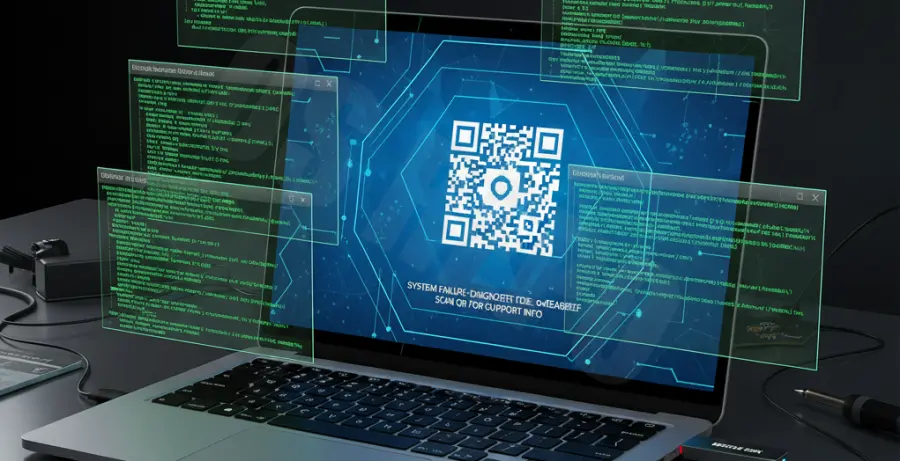
What is the Ubuntu 24.04 GRUB Rescue Blue Screen?
The Ubuntu 24.04 “Blue Screen” is a new error diagnostic feature. Unlike the classic text-only kernel panic, this screen provides a QR code and a high-level summary of what went wrong during the boot process.
When this is paired with a “grub rescue” prompt, it signifies that the bootloader (GRUB) cannot find its configuration files or the Linux partition. This usually happens after a failed update, a dual-boot interference, or a change in disk UUIDs.
Step-by-Step Solutions to Fix the Error
Follow these methods in order to restore your system. You will need a bootable Ubuntu 24.04 USB stick for most of these fixes.
Method 1: Automatic Boot Repair (Recommended)
This is the easiest way to fix boot issues without typing complex commands. Boot from your Live USB and select “Try Ubuntu”.
sudo add-apt-repository ppa:yannubuntu/boot-repair
sudo apt update
sudo apt install -y boot-repair && boot-repair
Once the application opens, click on “Recommended Repair.” This will automatically reinstall GRUB and fix the blue screen error.
Method 2: Manual Repair via Chroot
If the automatic tool fails, you can manually reinstall the bootloader. First, identify your Ubuntu partition using lsblk or fdisk -l.
# Mount the system partition (replace sdXn with your drive, e.g., sda2)
sudo mount /dev/sdXn /mnt

# Mount necessary virtual filesystems
for i in /dev /dev/pts /proc /sys /run; do sudo mount -B $i /mnt$i; done

# Enter the system
sudo chroot /mnt

# Reinstall GRUB (replace sdX with your disk, e.g., sda)
grub-install /dev/sdX
update-grub

# Exit and reboot
exit
sudo reboot
Method 3: Fixing from the Grub Rescue Prompt
If you cannot reach the Live USB and are stuck at the grub rescue> prompt, try these commands to find the boot files manually:
# List available partitions
ls

# Set the root and prefix (replace (hd0,msdos1) with your partition)
set root=(hd0,msdos1)
set prefix=(hd0,msdos1)/boot/grub

# Attempt to load the normal module
insmod normal
normal
Once the system boots into Ubuntu, immediately open a terminal and run sudo update-grub to make the changes permanent.