Symptoms & Diagnosis
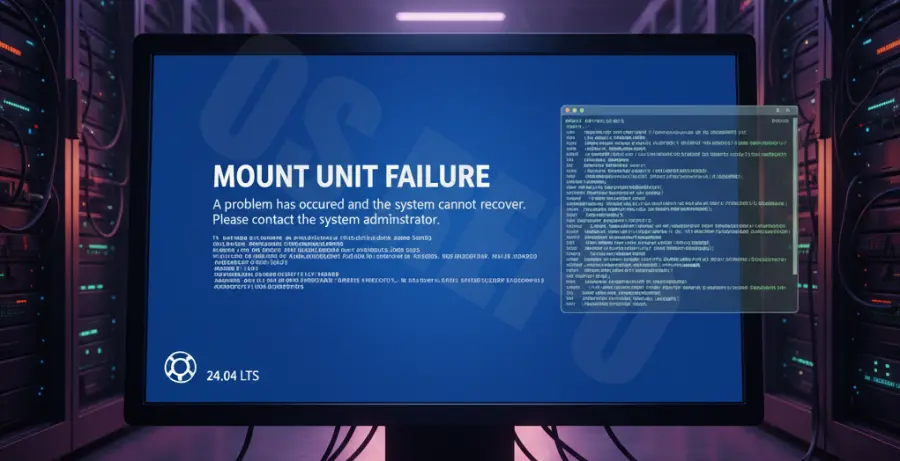
Ubuntu 24.04 introduces a new “Blue Screen” (BSOD) feature via systemd-bsod to display boot-time errors more clearly. When a mount unit fails, the system halts and presents a full-screen diagnostic message instead of a blinking cursor.
You will likely see a message stating “Dependency failed for local-fs.target” or a specific mount point failing to initialize. This usually occurs because a disk listed in your configuration is missing, corrupted, or incorrectly identified.
Troubleshooting Guide
To fix the mount unit failure, you must identify which drive is causing the timeout. Start by booting into “Recovery Mode” from the GRUB menu and dropping into a Root Shell Prompt.
1. Identify the Failing Unit
Run the following command to list all failed systemd units. This will highlight the specific drive or partition causing the boot crash.
systemctl --failed
journalctl -p 3 -xb
2. Verify File System Integrity
Check the status of your partitions. Use the table below to understand common error indicators found in the logs:
| Error Message | Root Cause | Recommended Action |
|---|---|---|
| Timed out waiting for device | Drive disconnected or UUID changed. | Update /etc/fstab with correct UUID. |
| Structure needs cleaning | File system corruption. | Run fsck on the affected partition. |
| Mount point does not exist | Missing directory in /mnt or /media. | Create the target directory using mkdir. |
3. Edit the fstab Configuration
Most mount failures are caused by incorrect entries in the fstab file. Open the file to comment out or fix the problematic line.
# Remount root as read-write first
mount -o remount,rw /

# Edit the fstab file
nano /etc/fstab
Look for lines that do not have the `nofail` option. If a non-essential drive (like a secondary HDD) is missing, adding `nofail` will allow Ubuntu to boot even if the drive is absent.
Prevention
To ensure Ubuntu 24.04 boots reliably every time, follow these best practices for disk management:
- Use UUIDs: Always use UUIDs instead of device names (like /dev/sdb1) in your fstab, as device letters can change between reboots.
- Add ‘nofail’ Option: For external USB drives or secondary data partitions, add the
nofailflag to prevent boot hangs. - Check Health: Regularly monitor drive health using
smartctlto catch hardware failures before they trigger a BSOD. - Backup fstab: Always create a backup of your configuration before making changes using
cp /etc/fstab /etc/fstab.bak.