Symptoms & Diagnosis
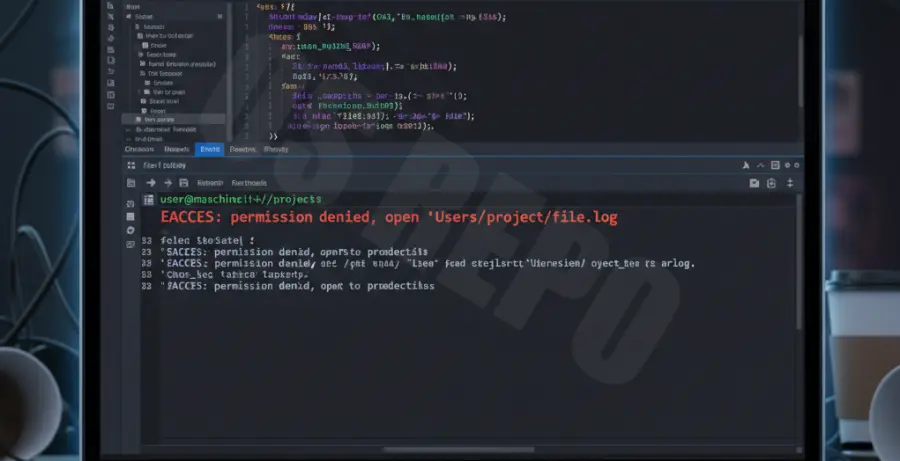
The EACCES error in Visual Studio Code is a common filesystem permission issue. It occurs when the application attempts to access a file or directory that the current user does not have authorization to read, write, or execute.
You typically encounter this error when saving a file, installing an extension, or updating the IDE. It is most prevalent on macOS and Linux systems due to strict POSIX permission structures, though it can occur on Windows when administrative overrides are active.
| Symptom | Common Cause |
|---|---|
| Failed to save “filename.js” | Lack of write permissions on the project folder. |
| EACCES: permission denied, mkdir | Global npm folders owned by root. |
| Extension installation failed | VS Code binary doesn’t have access to the .vscode/extensions folder. |
Troubleshooting Guide
To resolve the EACCES error, you must align the folder ownership with your active user account. Follow these steps based on your environment.
1. Fix Folder Ownership (macOS/Linux)
The most effective fix is changing the ownership of the project directory to your current user. Replace your-username with your actual system name and /path/to/project with your directory path.
sudo chown -R your-username /path/to/projectThis command recursively updates the owner, allowing VS Code to modify files without elevated privileges.
2. Repair NPM Global Permissions
If the error occurs while using the integrated terminal to install packages, your global node_modules folder likely requires root access. You can fix this by changing the global directory owner.
sudo chown -R $(whoami) $(npm config get prefix)/{lib/node_modules,bin,share}3. Windows Permission Reset
On Windows, ensure the folder is not marked as “Read-only” in the folder properties. Right-click the folder, go to Properties, and uncheck “Read-only”. Ensure your user account has “Full Control” in the Security tab.
Prevention
Preventing EACCES errors requires adopting a “Least Privilege” workflow. Avoid running VS Code or your terminal with sudo, as this creates files owned by the root user that you cannot edit later.
Use a Version Manager like NVM (Node Version Manager). NVM installs Node.js in your home directory, ensuring all global packages are owned by your user by default, bypassing the need for administrative overrides.
Always verify that your workspace is located within your user directory (e.g., /Users/name/Projects) rather than system-protected directories like /usr/bin or the root / folder.