Symptoms & Diagnosis
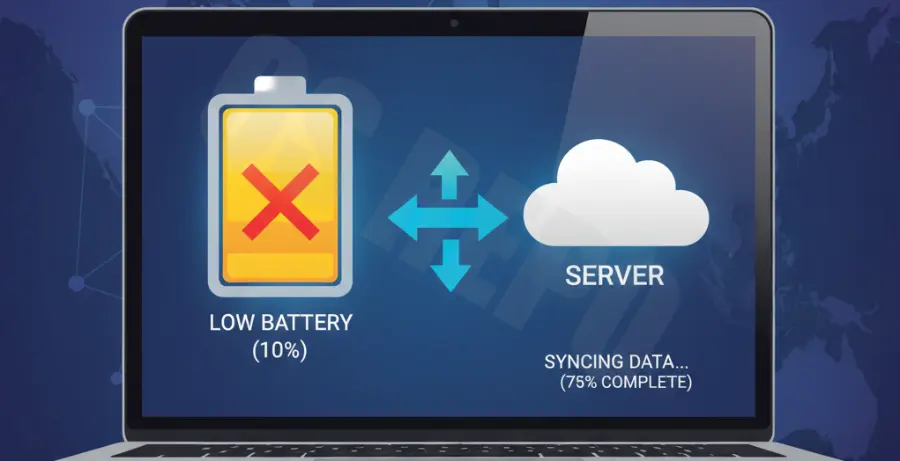
Rapid battery depletion on your local machine while interacting with AWS EC2 often stems from aggressive data synchronization. When the AWS CLI or background sync scripts run, they consume significant CPU cycles and network bandwidth.
Common symptoms include your laptop fan spinning loudly, the chassis becoming hot, and the battery percentage dropping by double digits in minutes. This is usually caused by high-frequency polling or unoptimized file transfers between your local environment and the EC2 instance.
To diagnose the issue, monitor your system resources. On Linux or macOS, use the top or htop command to identify processes like aws, rsync, or scp that are consuming excessive CPU power.
Troubleshooting Guide
The primary cause of battery drain during EC2 data sync is often the default configuration of the AWS CLI or sync tools which attempt to maximize throughput at the cost of local power.
You can limit the resource consumption by adjusting the max concurrency settings. This reduces the number of simultaneous threads, lowering the CPU load on your portable device.
# Limit AWS CLI S3 sync concurrency to save battery
aws configure set default.s3.max_concurrent_requests 10
aws configure set default.s3.max_queue_size 100
If you are using rsync to move data to an EC2 instance, use the --bwlimit flag to throttle bandwidth. This prevents the network card from operating at maximum power, which is a major contributor to battery drain.
# Limit rsync bandwidth to 1000 Kbytes per second
rsync -avz --bwlimit=1000 ./local-data/ ec2-user@your-instance-ip:/remote-data/| Sync Method | Power Impact | Optimization Strategy |
|---|---|---|
| AWS CLI S3 Sync | High | Lower max_concurrent_requests |
| Rsync over SSH | Medium | Apply –bwlimit and disable compression |
| EC2 Instance Connect | Low | Use browser-based terminal for minor tasks |
Prevention
To prevent future battery drain, avoid real-time synchronization scripts that use “watch” commands. These scripts constantly poll for file changes, keeping the CPU in a high-power state.
Switch to manual sync intervals or use scheduled cron jobs that only run when your device is connected to a power source. Additionally, ensure you are using the latest version of the AWS CLI, as newer versions include performance and power efficiency improvements.
Consider using AWS S3 as an intermediary. Uploading files to S3 with a lower priority and then having the EC2 instance pull them can offload the processing burden from your local battery-powered machine.
# Example: Only run sync if not on battery (macOS example)
if [[ $(pmset -g batt | grep 'Battery Power') ]]; then
    echo "On battery: Skipping heavy sync."
else
    aws s3 sync ./local s3://my-bucket/
fi