Symptoms & Diagnosis
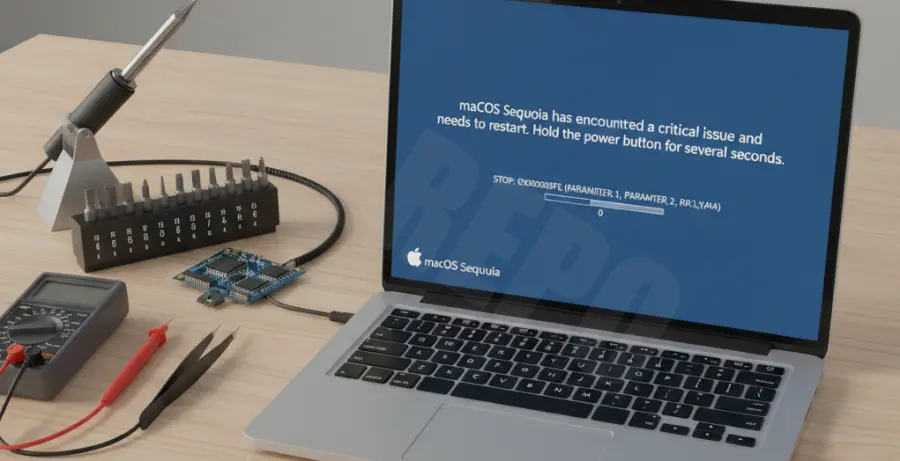
While rare on macOS, a Blue Screen (BSOD) or a “Kernel Panic” during the macOS Sequoia boot process indicates a critical system failure. This usually occurs when the kernel encounters an error it cannot recover from, often caused by corrupted system files or incompatible drivers.
You may notice your Mac stuck in a boot loop, displaying a solid blue screen before restarting. In other cases, the screen may flicker blue briefly before showing the “Your computer restarted because of a problem” message. Identifying whether this is a persistent software glitch or a hardware fault is the first step toward a resolution.
Troubleshooting Guide
Before proceeding with a full reinstallation, it is essential to categorize the failure. Use the table below to identify common triggers for system instability in macOS Sequoia.
| Failure Type | Likely Cause | Primary Fix |
|---|---|---|
| Boot Loop | Corrupt Boot Loader | NVRAM/PRAM Reset |
| Persistent Blue Screen | System File Corruption | macOS Reinstallation |
| I/O Error | Failing SSD/Logic Board | Hardware Repair |
Step 1: Enter Recovery Mode
For Apple Silicon (M1/M2/M3): Shut down your Mac. Press and hold the Power button until “Loading startup options” appears. Select Options, then click Continue.
For Intel Macs: Restart your Mac and immediately hold Command (⌘) + R until the Apple logo appears. This will boot the machine into the local Recovery Partition.
Step 2: Verify Disk Integrity
Before reinstalling, use Terminal within Recovery Mode to check your disk’s health. Select Utilities > Terminal from the top menu and run the following command to list your partitions:
diskutil list
diskutil verifyVolume /dev/disk0s2
Step 3: Reinstall macOS Sequoia
Select “Reinstall macOS Sequoia” from the Recovery menu. This process will download a fresh copy of the operating system and overwrite the system files while attempting to keep your user data intact.
Follow the on-screen prompts, select your main drive (usually Macintosh HD), and click Install. Ensure your Mac is connected to power and a stable Wi-Fi network throughout this process, as it may take over an hour to complete.
Prevention
To avoid future blue screen errors on macOS Sequoia, always maintain at least 20GB of free space on your system drive. This allows the OS to handle swap files and temporary updates without crashing.
Avoid installing kernel-level extensions or third-party “cleaner” apps that modify system directories. Regularly check for macOS updates in System Settings, as Apple frequently releases patches for stability issues discovered in Sequoia.