| Method | Difficulty | Requirements |
|---|---|---|
| Master Password Code | Easy | System Service Tag |
| CMOS Battery Reset | Moderate | Screwdriver, Physical Access |
| Motherboard Jumper | Advanced | PSWD Jumper Pin |
What is the Dell BIOS Password?
A Dell BIOS password is a security measure implemented at the firmware level. It prevents unauthorized users from changing hardware settings or booting the operating system. When the motherboard BIOS login fails, the system locks access to the Basic Input/Output System.
There are typically two types of passwords: the System Password and the Admin Password. The System Password restricts booting, while the Admin Password restricts changes to the BIOS configuration itself. Losing these credentials requires a hardware or software-based override.
Step-by-Step Solutions
Method 1: Using the Master Password Recovery
Dell systems generate a unique “Service Tag” followed by a suffix (like -595B or -E7A8) when the password prompt appears. You can use this tag to generate a recovery master password.
- Restart your Dell computer and enter the wrong password three times.
- Note the Service Tag and the code displayed on the “System Disabled” screen.
- Visit a BIOS password recovery site (like bios-pw.org) on another device.
- Enter your Service Tag to receive a generic bypass code.
# Example of how a service tag looks in the prompt
System Number: [ABC1234-595B]
Password: ****
# Enter the generated master code here
Method 2: Resetting the CMOS Battery
If software codes fail, you can reset the non-volatile RAM (NVRAM) by removing the power source from the BIOS chip. This is effective for older Dell laptops and desktops.
- Power off the device and unplug all cables.
- Open the case or the bottom panel of the laptop.
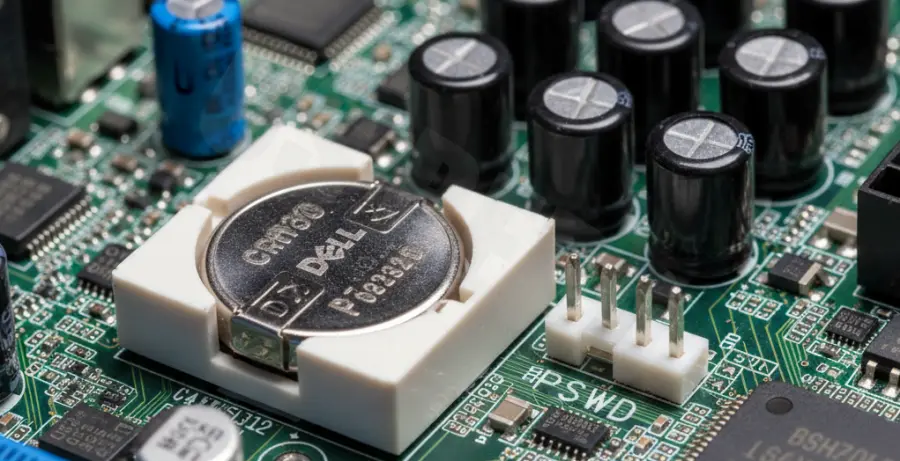
- Locate the coin-cell battery (CR2032) on the motherboard.
- Remove the battery carefully and wait for 5–10 minutes.
- Reinsert the battery and restart the system.
Method 3: Using the PSWD Jumper (Desktops Only)
Dell desktop motherboards often feature a specific jumper labeled “PSWD” or “CLR_PWD” designed to clear the BIOS password hardware-level.
- Identify the 2-pin or 3-pin jumper labeled PSWD on the motherboard.
- Remove the jumper plug from the pins.
- Power on the machine without the jumper to clear the password.
- Turn off the system and replace the jumper to its original position.
Note: On modern Dell laptops, the password is often stored in non-volatile memory that does not clear by removing the CMOS battery. In these cases, contacting Dell Support with proof of purchase is the only official solution.