Symptoms & Diagnosis
Windows 11 crashes to desktop (CTD) can be incredibly frustrating, especially when they occur without a specific error code. These crashes often manifest as a sudden freeze followed by an immediate return to the desktop wallpaper.
Common symptoms include stuttering before a crash, applications closing unexpectedly, and the mouse cursor lagging. You might also notice your cooling fans spinning faster right before the system fails to maintain stability.
To diagnose the root cause, check the Windows Event Viewer. Look for “Critical” or “Error” logs under the System tab. Often, these crashes are linked to corrupted system files, outdated drivers, or registry conflicts that prevent Windows from executing standard processes.
Troubleshooting Guide
Before attempting a full system reset, you should try non-invasive repairs. The first step is using the built-in System File Checker (SFC) and Deployment Image Servicing and Management (DISM) tools to fix damaged files.
Open Terminal as Administrator and run the following command to scan for corruption:
sfc /scannowIf SFC finds errors it cannot fix, use the DISM tool to repair the Windows image from an online source:
DISM /Online /Cleanup-Image /RestoreHealthChoosing the Right Repair Method
Depending on the severity of your crashes, different methods offer varying levels of “depth.” Use the table below to decide which path is right for your current situation.
| Method | Data Safety | Effectiveness for CTD |
|---|---|---|
| SFC / DISM | 100% Safe | Moderate |
| Startup Repair | 100% Safe | High (Boot Issues) |
| Reset PC (Keep Files) | Safe (Apps Removed) | Very High |
Resetting Windows 11 Without Data Loss
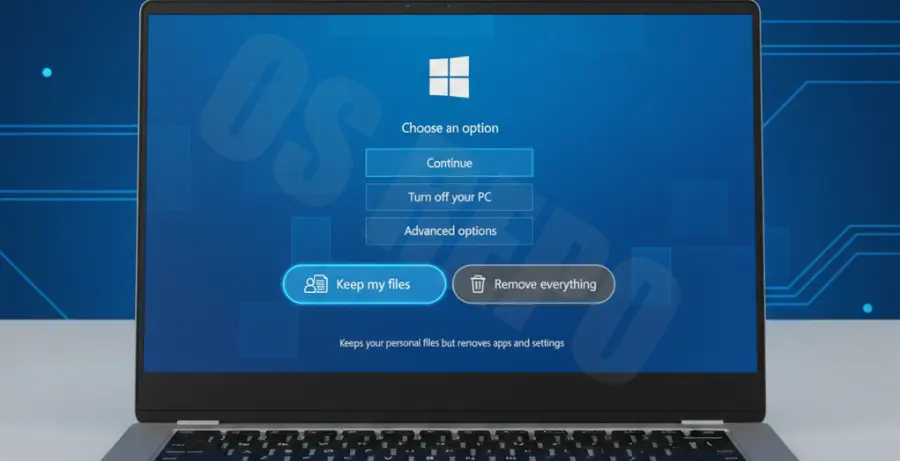
If commands fail, the “Reset this PC” feature is the most effective solution. This reinstalls Windows 11 while keeping your personal documents, photos, and music intact.
Go to Settings > System > Recovery. Click on Reset PC and ensure you select “Keep my files”. This process will remove installed applications and settings but preserves your user profile data.
Prevention
Preventing future crashes requires maintaining a clean environment. Always keep your GPU drivers updated via the manufacturer’s software, as outdated display drivers are the primary cause of desktop crashes.
Avoid installing “Registry Cleaners” or third-party optimization tools, as these often delete essential system pointers. Regularly run Windows Update to ensure security patches and stability fixes are applied automatically.
Lastly, monitor your hardware temperatures. Overheating components can trigger protective shutdowns or application crashes to prevent permanent hardware damage. Keep your intake vents clear and check your internal fans periodically.