Symptoms & Diagnosis
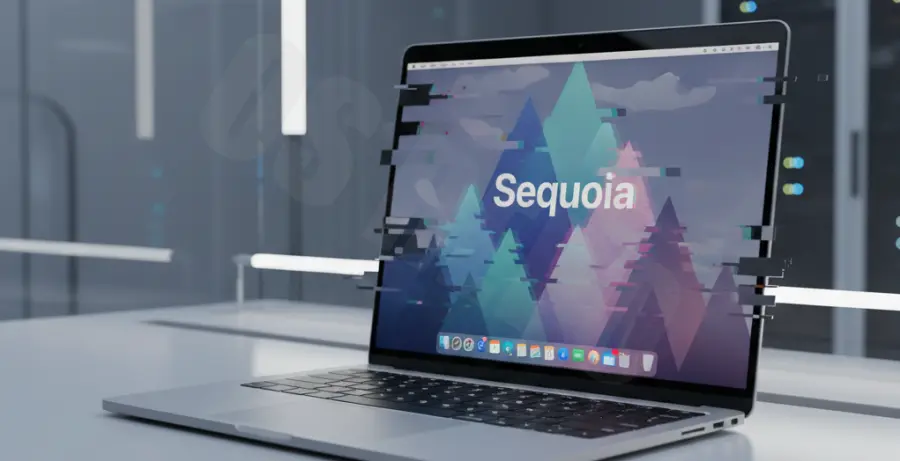
Screen flickering on macOS Sequoia often manifests as rapid blinking, horizontal lines, or momentary blackouts. This issue can occur randomly or when using specific applications like Safari or high-end video editors.
To diagnose the cause, first determine if the issue is hardware or software-related. If the flickering persists during the boot-up sequence (Apple logo), it is likely a hardware fault. If it only appears after logging in, a software conflict or driver issue in Sequoia is the probable culprit.
Check your display settings to see if the refresh rate is fluctuating. Inconsistent power delivery to external monitors can also trigger these symptoms.
Troubleshooting Guide
Start with the most basic resolution: a system restart. This clears the volatile memory and resets the GPU drivers which may have stalled during the macOS Sequoia update process.
Adjust ProMotion and Refresh Rates
If you are using a MacBook Pro with ProMotion, the dynamic switching of refresh rates can sometimes cause flickering. Navigate to System Settings > Displays and try setting a fixed refresh rate (e.g., 60Hz) instead of “ProMotion”.
Reset the WindowServer via Terminal
The WindowServer process manages the GUI on macOS. Force-restarting it can resolve many rendering glitches without a full system reboot.
sudo killall WindowServerNote: Running this command will log you out immediately. Save all work before proceeding.
| Potential Cause | Recommended Action |
|---|---|
| True Tone/Night Shift Conflict | Disable True Tone and Night Shift in Display Settings. |
| Incompatible Third-party Apps | Boot into Safe Mode to isolate background processes. |
| Corrupted GPU Cache | Clear system caches using a maintenance utility. |
| Faulty External Cable | Switch to a high-quality Thunderbolt 4 or HDMI 2.1 cable. |
Disable Automatic Graphics Switching
For Intel-based Macs with dual GPUs, the transition between integrated and discrete graphics can cause a flicker. Go to System Settings > Battery > Options and disable “Automatic graphics switching” to keep the dedicated GPU active.
Safe Mode Boot
Booting into Safe Mode clears certain system caches and disables login items. To do this on Apple Silicon, shut down your Mac, then hold the Power button until “Loading startup options” appears. Select your disk, hold Shift, and click “Continue in Safe Mode.”
Prevention
Keep your macOS Sequoia installation updated. Apple frequently releases point updates (e.g., 15.1, 15.2) that contain specific driver patches for display stability and GPU performance.
Avoid using low-quality USB-C hubs for external displays. These hubs often lack the bandwidth required for macOS Sequoia’s high-resolution output, leading to signal drops and flickering.
Monitor your device temperature. Overheating can lead to GPU throttling, which often presents as visual artifacts or screen flickering. Ensure proper ventilation during intensive tasks.