Symptoms & Diagnosis
Microsoft Edge utilizes the Web Bluetooth API to communicate with external peripherals. When pairing fails, it usually manifests as a persistent “searching” state or an immediate “Connection Failed” message.
Diagnosis begins by identifying if the issue is hardware-related or a software restriction within the browser environment. Use the table below to categorize your specific issue.
| Issue Category | Primary Symptom | Potential Cause |
|---|---|---|
| Discovery Failure | Device list remains empty in the popup. | Bluetooth disabled or site permission denied. |
| Handshake Error | “Could not pair” message after selection. | Incorrect PIN or device already bonded elsewhere. |
| API Support | “Web Bluetooth is not supported” error. | Edge flags disabled or outdated browser version. |
If the device is visible in your system Bluetooth settings but not in Edge, the problem likely lies within the browser’s permission stack or experimental flag settings.
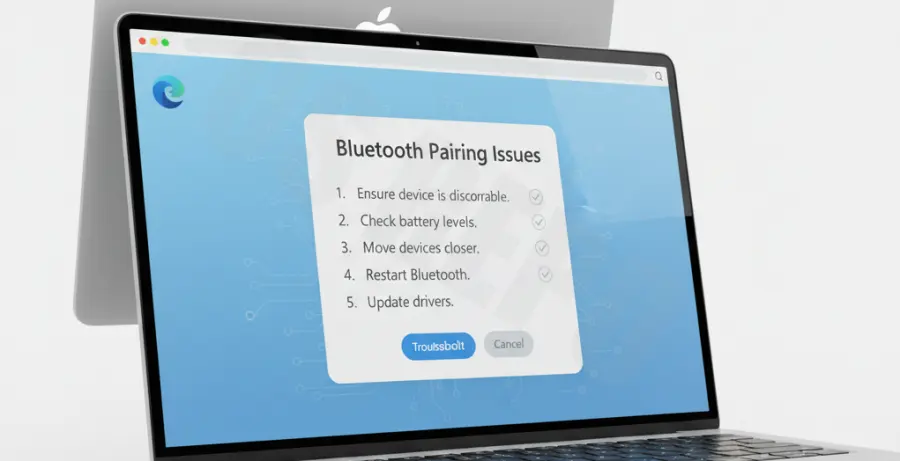
Troubleshooting Guide
1. Check Site Permissions
Ensure the website has permission to access Bluetooth. Click the “Lock” icon next to the URL, select “Permissions for this site,” and ensure Bluetooth is set to “Allow.”
2. Enable Experimental Web Bluetooth Flags
By default, certain Bluetooth features may be restricted in Edge. You can force-enable the Web Bluetooth API by navigating to the internal flags menu.
# Copy and paste this into your Edge address bar:
edge://flags/#enable-web-bluetooth
Set the “Web Bluetooth” flag to “Enabled” and click the “Restart” button that appears at the bottom of the window to apply changes.
3. Reset the Bluetooth Stack (System Level)
Sometimes the underlying OS Bluetooth service hangs, preventing Edge from hooks. You can restart the Bluetooth support service to clear the cache.
# For Windows (Run in PowerShell as Admin):
Restart-Service -Name "Bluetooth Support Service" -Force
4. Clear Browser Cache and Cookies
Corrupted site data can interfere with the pairing handshake. Clear the cached data specifically for the site you are trying to use to ensure a fresh session.
Prevention
To prevent future pairing failures, always keep Microsoft Edge updated. Chromium-based browsers frequently release patches for the Web Bluetooth stack to improve hardware compatibility.
Avoid having the device paired to multiple hosts simultaneously. Bluetooth LE (Low Energy) devices often struggle to announce themselves if they have an active bond with a nearby smartphone or tablet.
Lastly, ensure that your computer’s Bluetooth drivers are up to date via the manufacturer’s website. Modern Web Bluetooth features require updated firmware to handle secure GATT (Generic Attribute Profile) communications efficiently.