Symptoms & Diagnosis
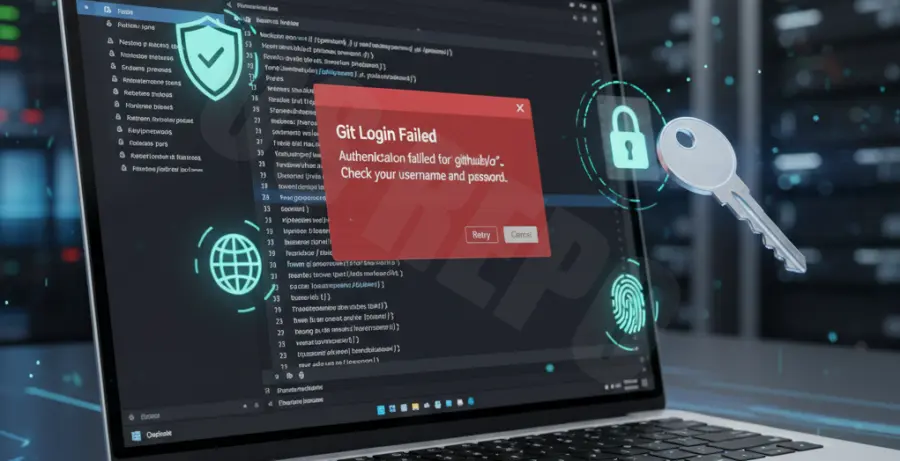
When your Git credentials expire or change, VS Code often triggers a “Git: Fatal: Authentication failed” error. This usually happens after a password reset on platforms like GitHub, GitLab, or Bitbucket.
You might notice a persistent pop-up asking for credentials that refuses to disappear. Alternatively, the integrated terminal may reject your git push or git pull commands with a 403 Forbidden error.
The root cause is typically the OS-level credential helper. Your operating system stores outdated tokens, and VS Code continues to pass these stale credentials to the remote server, leading to repeated login failures.
Troubleshooting Guide
To resolve this, you must clear the cached credentials from your system. Below are the steps for the most common operating systems used with VS Code.
Option 1: Windows Credential Manager
Windows stores Git passwords in the Credential Manager. Follow these steps to update them:
| Step | Action |
|---|---|
| 1 | Open the Start menu and search for “Credential Manager”. |
| 2 | Select “Windows Credentials”. |
| 3 | Find the entry for your Git provider (e.g., git:https://github.com). |
| 4 | Click “Edit” to update the password or “Remove” to force a new prompt in VS Code. |
Option 2: macOS Keychain Access
On macOS, Git uses the Keychain. Open “Keychain Access” via Spotlight and search for your git provider. Delete the existing entry. The next time you perform a Git action in VS Code, a native dialog will appear asking for the new password.
Option 3: Using the Terminal
If you prefer using the command line within VS Code, you can tell Git to reject the current cached credentials directly. Run the following command:
git config --global credential.helper manager
# Or to clear the cache specifically
git credential-manager reject
After running this, restart VS Code. When you attempt to push code, a sign-in interface will appear, allowing you to enter your updated credentials or Personal Access Token (PAT).
Prevention
To avoid frequent password issues, switch from standard passwords to Personal Access Tokens (PATs). Tokens are more secure and can be scoped to specific repository permissions.
Always ensure the Git Credential Manager (GCM) is installed and updated. GCM handles multi-factor authentication (MFA) seamlessly, which prevents manual password entry errors in the VS Code terminal.
Finally, consider using SSH keys instead of HTTPS. SSH keys use a public/private key pair stored locally, removing the need to manage or update passwords in VS Code entirely.