Symptoms & Diagnosis
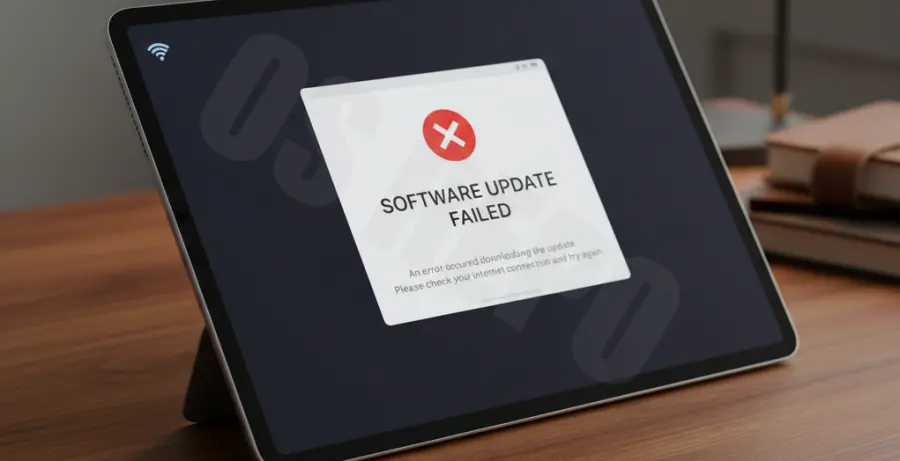
Losing your internet connection during an iPad Pro update can be a frustrating experience. It often results in the device hanging on a progress bar or displaying a “Software Update Failed” notification.
The most common symptom is the update getting stuck on the “Update Requested” or “Verifying Update” phase. Without a stable handshake between your device and Apple’s servers, the installation package cannot complete its integrity check.
| Error Symptom | Probable Cause |
|---|---|
| “Unable to Verify Update” | Server timeout or intermittent Wi-Fi signal. |
| Frozen Progress Bar | Download corruption due to packet loss. |
| “An error occurred” | Network switching (Wi-Fi to Cellular) during the process. |
To diagnose the issue, check if other devices on the same network are experiencing connectivity drops. If your router is fluctuating, the iPad Pro will pause the update as a safety measure to prevent system corruption.
Troubleshooting Guide
If your iPad Pro is stuck due to a lost connection, the first step is to refresh the network stack. Toggle Airplane Mode on and off, or restart your router to ensure a fresh IP assignment.
If the update remains stuck, you may need to clear the partially downloaded file. Navigate to Settings > General > iPad Storage, find the iOS/iPadOS update file, and delete it. This allows you to start the process from scratch.
For users who prefer a wired approach or are dealing with a totally unresponsive update screen, using a Mac or PC is the most reliable fix. You can trigger a manual update check via terminal-like utilities if you are using advanced management tools.
# Checking network reachability to Apple update servers
ping -c 4 mesu.apple.com
# If request timeouts occur, your DNS or Router is blocking the update.
Force Restarting iPad Pro
If the screen is frozen, perform a force restart: Press and quickly release Volume Up, press and quickly release Volume Down, then press and hold the Top button until the Apple logo appears.
Prevention
Preventing internet drops during an update starts with your environment. Always ensure you are on a private, stable Wi-Fi network rather than a public hotspot which may have session timeouts.
Keep your iPad Pro connected to power throughout the duration of the update. Low power modes can sometimes throttle network performance, leading to a “connection lost” error.
Finally, ensure you have at least 10GB of free space. A lack of local cache can cause the iPad to struggle with data packets, making it appear as though the internet connection has failed when the storage is actually the bottleneck.