Immediate Fix: Clear the Update Cache
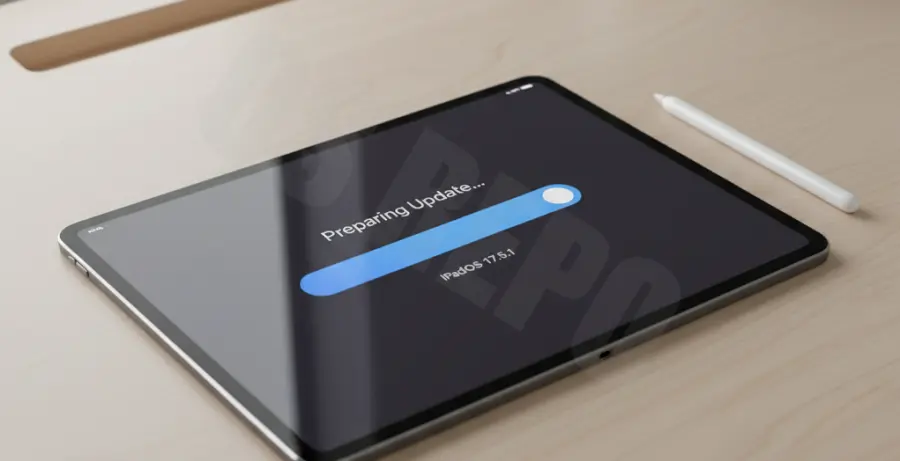
The fastest way to fix an iPad Pro stuck on the “Preparing Update” screen is to delete the corrupted update file and start over. This usually clears any software hanging in the background.
Navigate to Settings > General > iPad Storage. Scroll down until you find the iPadOS update file in the list of apps. Tap it and select Delete Update.
After deleting the file, perform a force restart on your iPad Pro. Press and quickly release the Volume Up button, then the Volume Down button, and finally hold the Top button until the Apple logo appears.
Once the device reboots, go back to Settings > General > Software Update and attempt the download again. Ensure you have a stable Wi-Fi connection and at least 50% battery life.
Technical Explanation for the “Preparing Update” Hang
The “Preparing Update” phase is when the iPad extracts the downloaded software package and verifies the digital signature with Apple’s servers. If this process is interrupted, the device may loop indefinitely.
This hang typically occurs due to insufficient local storage, a timeout in the verification handshake, or a corrupted download packet. Below are the primary technical bottlenecks:
| Issue Component | Technical Root Cause | Resolution |
|---|---|---|
| Storage Space | Insufficient blocks available for decompression. | Free up 10GB+ space. |
| Network Integrity | Packet loss during the checksum verification. | Switch to a 5GHz band. |
| Server Handshake | Apple’s TSS servers are overloaded or unreachable. | Check Apple System Status. |
If you are managing iPads via a terminal or specialized software, you can check your device’s filesystem status using standard command-line tools to ensure the mount point isn’t read-only or full.
# Example: Checking available storage via a connected shell
df -h | grep "/dev/disk0s1"
Alternative Methods to Force the Update
If the over-the-air (OTA) method continues to fail, you must use a wired connection. This bypasses the iPad’s internal extraction logic and uses your computer’s processing power instead.
Using Finder or iTunes
Connect your iPad Pro to a Mac (macOS Catalina or later) or a PC with iTunes. Open Finder, select your device, and click Check for Update. This method downloads the full IPSW file, which is more reliable than the smaller delta updates used in the Settings app.
Utilizing Recovery Mode
For persistent failures, put the iPad Pro into Recovery Mode. Connect it to a computer, press Volume Up, then Volume Down, and hold the Top button until the recovery screen (computer icon) appears. Choose Update in the prompt that appears on your computer; this will re-install the firmware without erasing your data.