| Issue | Probable Cause | Primary Solution |
|---|---|---|
| Update Stuck at “1 Second Remaining” | Server timeout or corrupted update file. | Force restart and delete/re-download update. |
| Infinite Verification Loop | Network instability or lack of storage. | Switch to a stable 5GHz Wi-Fi network. |
| Frozen Installation Screen | Software glitch during the final handshake. | Update via Finder or iTunes on a computer. |
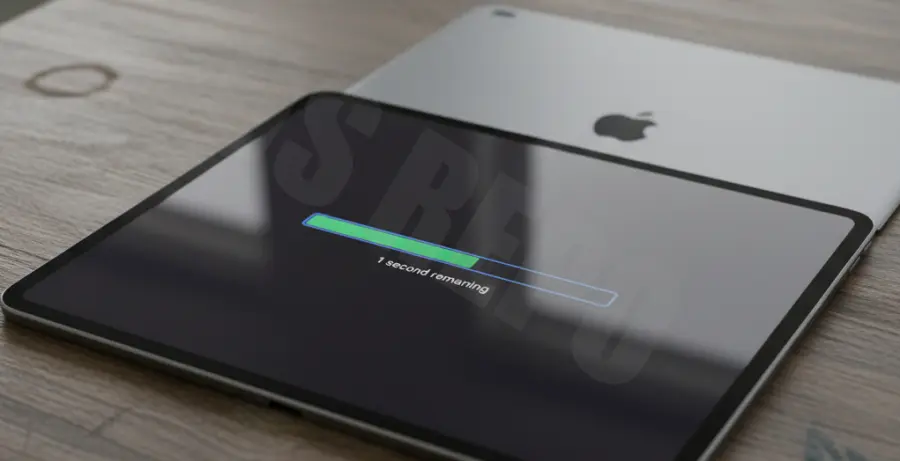
What is iPad Pro Update Stuck on 1 Second Remaining?
The “1 second remaining” error on an iPad Pro occurs during the final phase of the iPadOS download or installation process. While the progress bar appears nearly finished, the system hangs indefinitely, preventing the device from rebooting into the new software version.
This issue is typically not a hardware failure. Instead, it is usually caused by a “handshake” error between the iPad and Apple’s verification servers or a corrupted temporary file stored in the system cache. Because the iPad thinks it is still active, it may not automatically timeout, requiring manual intervention.
Step-by-Step Solutions
1. Perform a Force Restart
A force restart clears the temporary cache and stops any hung processes without deleting your data. This is the fastest way to break the update loop.
For iPad Pro models without a Home button: Press and quickly release the Volume Up button. Press and quickly release the Volume Down button. Then, press and hold the Top button until the Apple logo appears.
2. Delete and Restart the Download
If the restart doesn’t trigger the installation, the downloaded file is likely corrupted. You must remove it manually to start fresh.
Go to Settings > General > iPad Storage. Locate the iPadOS update file in the list. Tap it and select Delete Update. After deleting, go back to Software Update and try again.
3. Check Device Connectivity via Terminal (Advanced)
If you are troubleshooting an iPad Pro connected to a Mac and the update is hanging through Finder, you can check if the Apple Mobile Device Service is recognizing the unit properly.
# Check for connected Apple devices in recovery or DFU mode
system_profiler SPUSBDataType | grep "iPad"
# Restart the mobile device daemon on macOS
sudo killall -9 com.apple.usbmuxd
4. Use Recovery Mode via Computer
When the on-device update fails repeatedly, using a Mac or PC provides a more stable environment. This bypasses local storage glitches and downloads the firmware directly to the device.
Connect your iPad Pro to your computer. Put the device into Recovery Mode. When the prompt appears on your computer, select Update (not Restore) to re-install the OS without losing your personal files.