Symptoms & Diagnosis
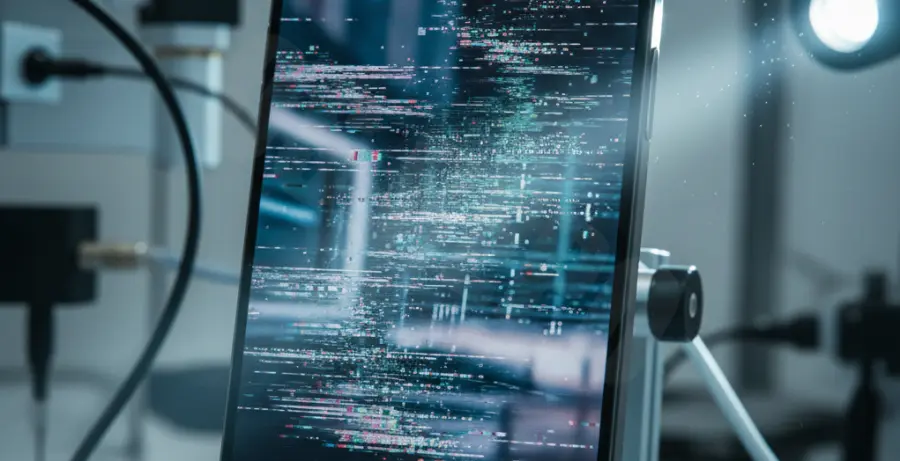
The iPhone 16 Pro features an advanced LTPO Super Retina XDR OLED. However, some users have reported a disruptive screen flickering issue. This typically appears as rapid brightness shifts, a faint green or purple tint, or horizontal lines flashing across the panel.
To diagnose the issue, observe if the flickering occurs at low brightness levels or while using the Always-On display. If the flickering is present on the Apple logo during startup, the issue is likely hardware-related. If it only appears within specific apps, it is likely a software optimization conflict.
Troubleshooting Guide
Most display anomalies on the iPhone 16 Pro can be traced back to software glitches or ProMotion refresh rate sync errors. Follow these steps to isolate and resolve the problem.
Force Restart the Device
A force restart re-initializes the display driver and clears the volatile memory. This is the first step in resolving persistent flickering caused by a hung process.
# Execute these steps in rapid succession:
1. Press and quickly release the Volume Up button.
2. Press and quickly release the Volume Down button.
3. Press and hold the Side button until the Apple logo appears.
Toggle Display Settings
Sometimes the variable refresh rate (ProMotion) or True Tone calibration fails. Navigate to Settings > Display & Brightness. Try disabling “True Tone” and “Always-On.” If the flickering stops, the issue resides in the ambient light sensor calibration or the low-power display state.
Check for iOS Updates
Apple frequently releases firmware patches for display driver stability. Ensure your device is running the latest version of iOS 18 to fix known flickering bugs.
| Fix Method | Effectiveness | Data Loss Risk |
|---|---|---|
| Force Restart | High (Temporary) | None |
| iOS Software Update | Very High | None |
| Reset All Settings | Moderate | System Preferences Only |
| DFU Mode Restore | Low (Software Only) | High (Full Wipe) |
Prevention
To prevent future screen flickering, avoid exposing your iPhone 16 Pro to extreme temperatures. High heat can damage the OLED adhesive and the display controller, leading to permanent hardware failure.
Always use MFi-certified charging accessories. Third-party chargers with poor voltage regulation can introduce electrical noise into the display digitizer, causing “phantom touches” and visual flickering during charging cycles.
Finally, keep your apps updated via the App Store. Developers frequently update their software to ensure compatibility with the iPhone 16 Pro’s unique refresh rate hardware, preventing frame-pacing issues that look like flickering.