Symptoms & Diagnosis
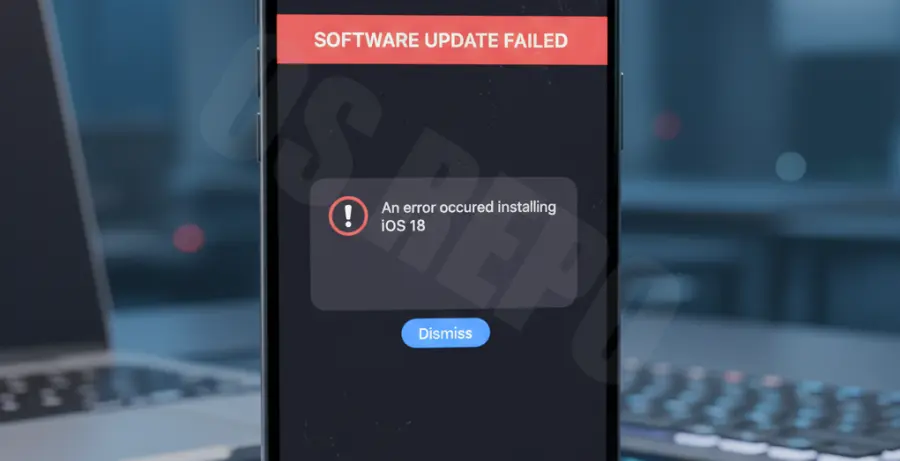
Users upgrading their iPhone 16 Pro to the latest iOS 18 build often encounter a frustrating “Software Update Failed” alert. This typically manifests as a pop-up stating, “An error occurred installing iOS 18,” followed by an option to close or go to settings.
Diagnosis begins by identifying whether the failure happens during the “Downloading,” “Preparing Update,” or “Verifying Update” phase. Common triggers include server congestion, insufficient local storage, or a corrupted update package cached on the device.
| Error Symptom | Probable Cause |
|---|---|
| Stuck on “Preparing Update” | Storage bottleneck or file corruption. |
| “Unable to Verify Update” | Network timeout or Apple Server downtime. |
| Infinite Boot Loop | Firmware mismatch during the install phase. |
Troubleshooting Guide
To resolve a persistent update failure, you must first clear the existing update cache. Navigate to Settings > General > iPhone Storage, locate the iOS 18 update file, and delete it before restarting the process.
If the standard over-the-air (OTA) method fails, you can force the device into Recovery Mode. This allows a Mac or PC to push a clean IPSW firmware file to your iPhone 16 Pro.
Advanced Recovery via Command Line (macOS)
For developers or advanced users, checking device logs via the terminal can pinpoint why the installation script failed. Use the following commands to monitor device activity during a tethered update:
# List connected Apple devices to verify connection
system_profiler SPUSBDataType | grep "iPhone"

# Tail the system log to find update-specific errors (Console approach)
log show --predicate 'process == "softwareupdated"' --last 10m
If the error persists, perform a Force Restart on your iPhone 16 Pro. Quickly press and release Volume Up, then Volume Down, and hold the Side Button until the Apple logo appears.
Prevention
- Storage Buffer: Ensure at least 15GB of free space before starting the iOS 18 installation.
- Network Stability: Use a private 5GHz Wi-Fi connection and disable VPNs or custom DNS profiles.
- Battery Level: Keep the device connected to a MagSafe or USB-C charger to prevent power-off during the write phase.
- Beta Cleanup: If you previously used a Beta profile, delete it and restart the device to fetch the public release.