| Issue | iPhone screen is black/unresponsive, but device emits sounds, vibrations, or haptic feedback. |
|---|---|
| Primary Cause | iOS 18 software glitch, display driver crash, or hardware connection failure. |
| Quick Fix | Force restart the device or perform a “Blind Update” via a computer. |
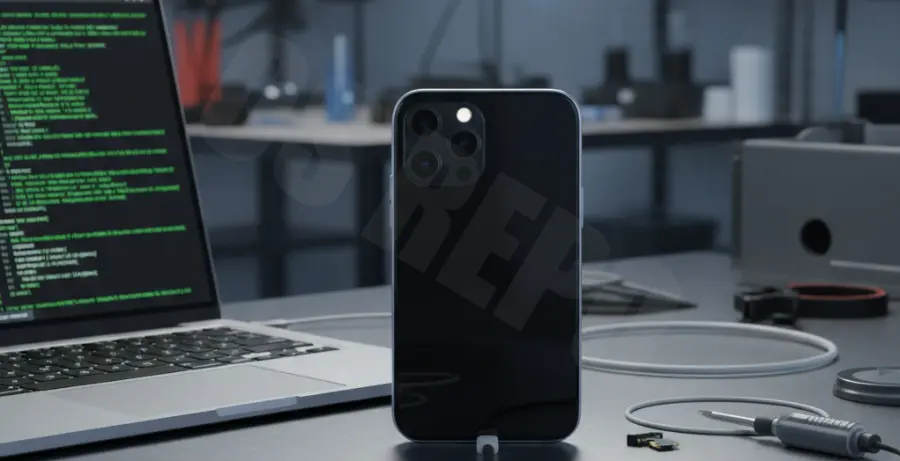
What is iPhone black screen but makes noise iOS 18?
The “iPhone black screen but makes noise” issue on iOS 18 occurs when the display remains completely dark, yet the phone is clearly powered on. You might hear notification pings, feel vibrations for incoming calls, or hear Siri respond.
This phenomenon usually indicates that the operating system is running in the background, but the graphical user interface (GUI) or the display driver has crashed. Following the iOS 18 update, some users experience this due to incompatible firmware settings or resource allocation errors during the installation process.
In some cases, it can also be a hardware problem where the display connector has loosened, but the software-side trigger is more common immediately after an OS update.
Step-by-Step Solutions
1. Perform a Forced Restart
A forced restart cuts the power to the logic board momentarily and clears the temporary cache, which often resets the display driver.
1. Press and quickly release the Volume Up button.
2. Press and quickly release the Volume Down button.
3. Press and hold the Side (Power) button.
4. Keep holding until the Apple Logo appears on the screen.
2. Connect to a Power Source
Plug your iPhone into a known working charger and wait at least 30 minutes. Sometimes a black screen is caused by a battery calibration error in iOS 18 where the screen doesn’t have enough power to initialize even if the system is running.
3. Use Recovery Mode via Computer
If the screen remains black, you can use a Mac or PC to “Refresh” the iOS 18 installation without deleting your data.
Connect your iPhone to your computer. Open Finder (Mac) or iTunes (Windows). Perform the Force Restart sequence mentioned above, but continue holding the Side button even after the Apple logo appears until you see the “Support” or “Laptop” icon on the phone screen.
On your computer, choose the “Update” option. This will reinstall iOS 18 while keeping your files intact.
4. Check for Guided Access Issues
Occasionally, Guided Access can glitch on iOS 18, locking the screen into a black state. Triple-click the Side button to see if a passcode prompt or “Guided Access Ended” message appears.
5. Adjust Brightness via Siri
If your screen is black but your touch digitizer still works, the brightness might be set to zero due to a software bug. Say, “Hey Siri, turn the brightness to maximum,” and check if the display becomes visible.