| Issue | Common Cause | Quick Fix |
|---|---|---|
| Rapid Battery Drop | Spotlight Indexing & Background Tasks | Wait 24-48 hours after update |
| Overheating | High CPU App Usage | Force Quit via Activity Monitor |
| Drain During Sleep | Power Nap / Wake for Network | Disable “Wake for network access” |
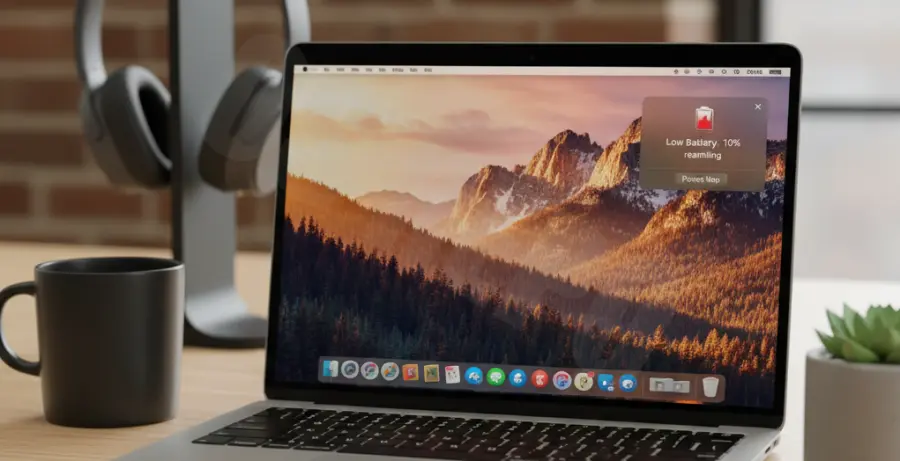
What is macOS Sequoia Battery Drain Fast?
macOS Sequoia battery drain fast refers to the sudden and significant decrease in battery life experienced by MacBook users after upgrading to Apple’s latest operating system. While some drain is expected immediately following an update, persistent issues indicate underlying software conflicts or misconfigurations.
Typically, this happens because macOS Sequoia performs intensive background tasks like Spotlight indexing, Photos library analysis, and system optimization. These processes consume CPU cycles and power until they are completed.
However, if your battery continues to plunge after several days, it may be due to incompatible third-party apps, localized bugs in the Sequoia build, or incorrect power management settings that prevent the Mac from entering a deep sleep state.
Step-by-Step Solutions
1. Identify Power-Hungry Applications
The first step is to find out which apps are draining your energy. macOS provides a built-in tool called Activity Monitor to track real-time power consumption.
Open Activity Monitor, navigate to the Energy tab, and click on the “Energy Impact” column to sort apps by their power usage. If you see an app you aren’t using taking up significant resources, select it and click the “X” button to force quit.
2. Check Battery Health and Usage Stats
Navigate to System Settings > Battery. Review the “Last 24 Hours” and “Last 10 Days” charts. If the battery level drops sharply even when the screen is off, background tasks are the likely culprit.
3. Terminate Indexing Processes via Terminal
If Spotlight indexing is stuck and causing excessive heat and drain, you can try restarting the metadata server using the following command:
sudo mdutil -E /This command erases the current index and forces macOS Sequoia to start fresh, which can often resolve loops that cause high CPU usage.
4. Manage Background Login Items
Many apps automatically start when you log in, consuming battery in the background. Go to System Settings > General > Login Items & Extensions.
Under “Open at Login,” remove unnecessary apps. Additionally, check the “Allow in Background” section and toggle off apps that don’t need to run 24/7. This significantly reduces the idle power draw on macOS Sequoia.
5. Optimize Display and Graphics Settings
macOS Sequoia includes several visual enhancements that can be taxing. If you are on a MacBook Pro with ProMotion, ensure your refresh rate is set to “Adaptive.”
Also, consider enabling Low Power Mode even when your battery is above 20%. You can find this toggle in System Settings > Battery. This limits background tasks and lowers the clock speed of the processor to extend longevity.
6. Update All Third-Party Software
Apps designed for macOS Sonoma may not be fully optimized for the Sequoia architecture. Check the Mac App Store or the developer’s website for updates. Developers often release patches within days of a major macOS launch to fix memory leaks and battery bugs.