| Common Causes | Recommended Fixes |
|---|---|
| Hardware Acceleration conflicts | Disable Hardware Acceleration in Edge settings. |
| Outdated Graphics Drivers | Update GPU drivers via Device Manager. |
| Corrupted Browser Cache | Clear cookies and temporary site data. |
| System File Corruption | Run SFC and DISM repair commands. |
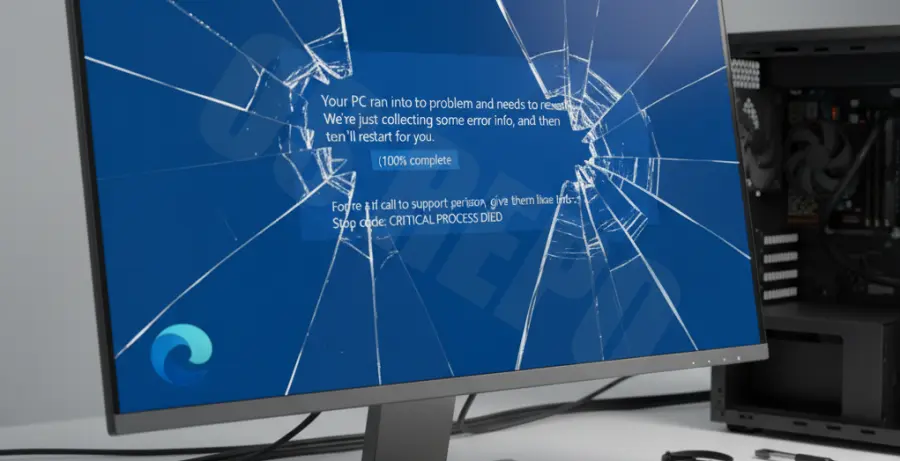
What is Microsoft Edge Blue Screen Windows 10?
The Microsoft Edge blue screen on Windows 10 occurs when the browser triggers a critical system failure, commonly known as the Blue Screen of Death (BSOD). This typically happens due to memory management issues or driver conflicts.
While a browser is an application, it interacts deeply with system hardware. If Edge tries to access a corrupted memory sector or utilizes a faulty graphics driver, Windows 10 will crash to protect the system.
Common error codes associated with this issue include “IRQL_NOT_LESS_OR_EQUAL” or “VIDEO_TDR_FAILURE.” Identifying these codes can help pinpoint whether the fault lies with your hardware or software settings.
Step-by-Step Solutions
1. Disable Hardware Acceleration
Hardware acceleration allows Edge to offload tasks to your GPU. However, if your graphics card driver is unstable, it can lead to a blue screen.
To disable this feature, open Edge and go to **Settings > System and performance**. Toggle off “Use hardware acceleration when available.”
Alternatively, you can launch Edge via the command line to troubleshoot if it won’t open:
msedge.exe --disable-gpu2. Clear Browser Cache and Cookies
Corrupted temporary files can cause the browser to behave erratically. Clearing these files ensures a fresh start for the application.
Navigate to **Settings > Privacy, search, and services**. Under “Clear browsing data,” select “Choose what to clear” and set the time range to “All time.”
Ensure you select “Cached images and files” and “Cookies and other site data” before clicking “Clear now.”
3. Update Graphics Card Drivers
Outdated display drivers are a primary culprit for browser-related system crashes. Keeping them updated ensures compatibility with Edge’s rendering engine.
Right-click the Start button and select **Device Manager**. Expand the “Display adapters” section, right-click your GPU, and select “Update driver.”
Choose “Search automatically for drivers.” If no update is found, visit the manufacturer’s website (NVIDIA, AMD, or Intel) to download the latest version manually.
4. Repair System Files (SFC and DISM)
If the blue screen persists, underlying Windows 10 system files may be damaged. You can use the built-in Windows Image Repair tools to fix them.
Open Command Prompt as an Administrator and run the following command to check for system integrity:
sfc /scannowAfter that finishes, run the DISM tool to repair the Windows image:
DISM /Online /Cleanup-Image /RestoreHealth5. Reset Microsoft Edge
If all else fails, resetting the browser to its default state can resolve deep-seated configuration errors that cause the blue screen.
Go to **Settings > Reset settings**. Click on “Restore settings to their default values” and confirm the action. This will not delete your favorites or passwords but will reset your startup page and extensions.