Symptoms & Diagnosis
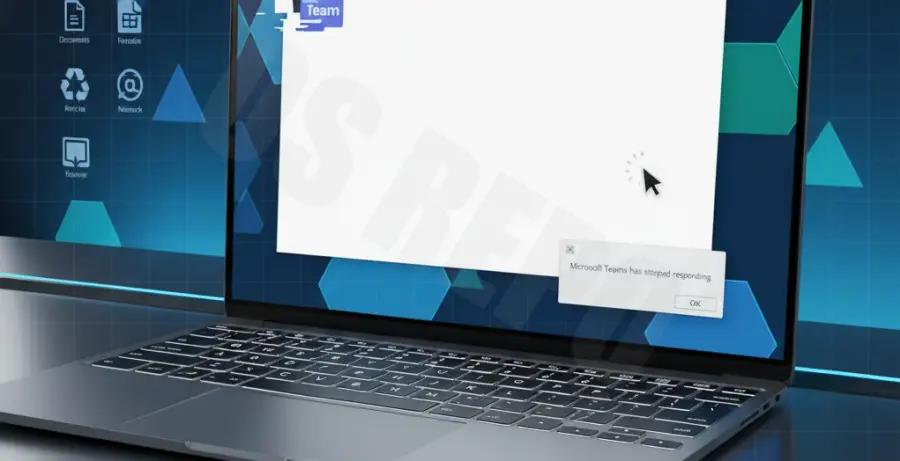
Microsoft Teams users frequently encounter a loop where the application launches, displays a blank white window, and then abruptly closes without an error message. This “crash to desktop” behavior usually indicates a failure during the initial rendering phase of the application.
Diagnosing this issue requires looking at how the app interacts with local data and hardware. Usually, the white screen is a symptom of the Electron framework (which powers Teams) failing to load the graphical user interface or stalling on a corrupted cache file.
| Symptom | Potential Diagnostic Meaning |
|---|---|
| Persistent White Screen | GPU Hardware Acceleration conflict or driver incompatibility. |
| White Screen then Instant Crash | Corrupted local configuration or “Desktop-config.json” file. |
| Teams Icon in Tray but No Window | Process is hung in the background; requires a hard restart. |
Troubleshooting Guide
1. Clear Teams Cache (The Primary Fix)
Corrupted temporary files are the most common cause of startup crashes. You must clear the local AppData folders to reset the application state without losing your personal chats or files.
# Close Teams first, then run these commands or delete manually
%appdata%\Microsoft\Teams
Open the Run dialog (Win + R), type the path above, and delete all files and folders within that directory. Restart Teams to see if the white screen persists.
2. Disable Hardware Acceleration
If the white screen is caused by your graphics card, disabling hardware acceleration can stabilize the app. If you cannot reach the settings menu, you may need to right-click the Teams icon in the taskbar and check settings there, or update your GPU drivers via Device Manager.
3. Reinstall Microsoft Teams
Sometimes the installation binaries themselves become corrupted. Uninstall Teams via “Apps & Features,” restart your computer, and download the latest version directly from the official Microsoft website.
Prevention
To prevent the white screen crash from returning, ensure you are running the most recent version of the Teams client. Microsoft pushes updates frequently that patch stability issues with the Electron engine.
Regularly clearing your Windows temporary files and keeping your graphics drivers (Intel, NVIDIA, or AMD) updated will also reduce the likelihood of rendering failures. Finally, avoid running third-party “cleaner” software that might accidentally delete essential Teams background processes.