Symptoms & Diagnosis
Microsoft Word freezing and closing abruptly is a disruptive issue that often stems from corrupted templates, incompatible add-ins, or system resource conflicts. Users typically experience a “Not Responding” message followed by an immediate crash to the desktop (CTD) without an error code.
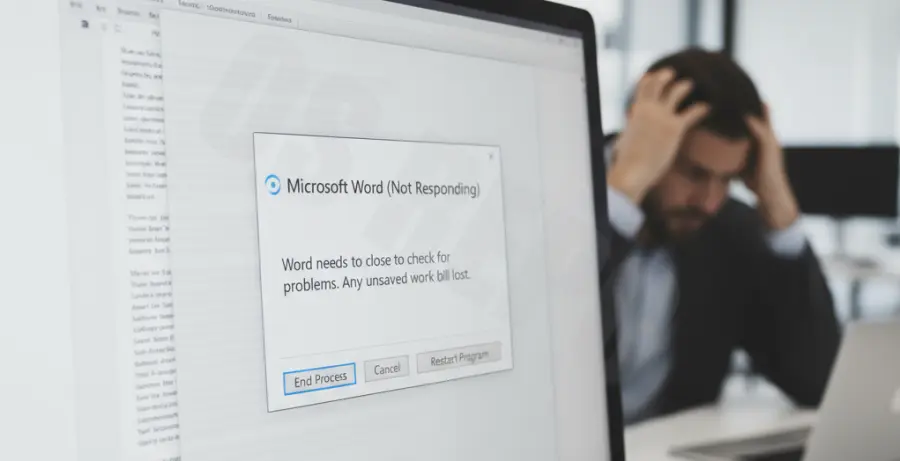
To diagnose the root cause, you should observe when the crash occurs. Does it happen upon launching the application, or only when opening specific documents? Identifying the pattern is the first step toward a permanent fix.
| Symptom | Primary Suspect | Initial Action |
|---|---|---|
| Freezes on Startup | Corrupt Normal.dotm template | Rename Global Template |
| Closes during editing | Incompatible COM Add-ins | Launch in Safe Mode |
| Freezes on Save | Network drive or Permission issues | Save to local Desktop |
Troubleshooting Guide
1. Launch Word in Safe Mode
Safe Mode bypasses add-ins and customizations. This helps determine if an external plugin is causing the instability. To trigger Safe Mode, use the Run command.
winword /safeIf Word functions correctly in Safe Mode, navigate to File > Options > Add-ins. Set the “Manage” dropdown to “COM Add-ins” and click Go. Uncheck all items and restart Word normally.
2. Repair the Office Installation
Windows includes a built-in utility to fix corrupted installation files. This is often more effective than a simple restart.
Open the Control Panel, go to Programs and Features, right-click on your Microsoft Office version, and select “Change.” Choose “Online Repair” for the most thorough restoration of system files.
3. Reset the Global Template (Normal.dotm)
Word stores default settings in a file called Normal.dotm. If this file is corrupted, Word will freeze upon opening. Renaming it forces Word to generate a fresh, clean version.
Navigate to %appdata%\Microsoft\Templates in File Explorer. Find “Normal.dotm” and rename it to “Normal.old”. Restart Word to see if the crashes persist.
Prevention
To prevent Microsoft Word from freezing in the future, ensure your graphics drivers are up to date. Hardware acceleration can sometimes cause rendering conflicts that lead to crashes.
Regularly clear your temporary folders and ensure that “AutoRecover” intervals are not set too frequently (e.g., every 1 minute), as constant disk writing can cause hangs on slower hard drives.
Finally, always keep Microsoft 365 or your standalone Office version updated. Microsoft frequently releases patches specifically designed to address stability issues reported by the user base.