Symptoms & Diagnosis
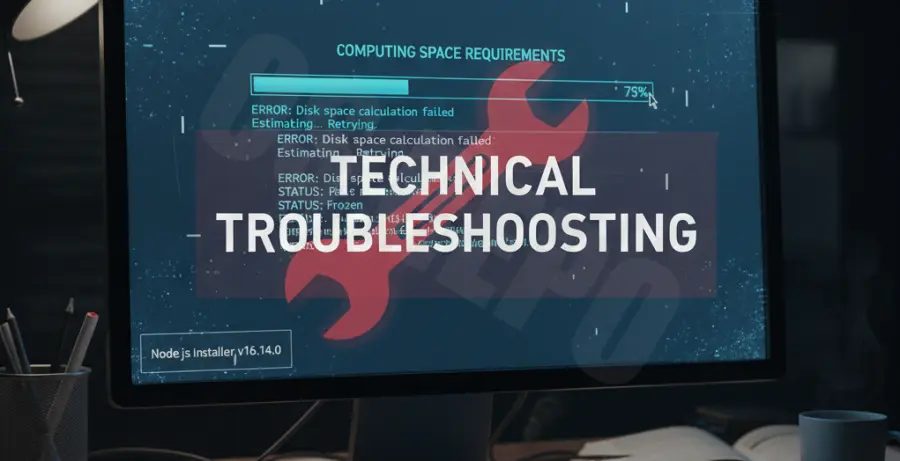
When installing Node.js on Windows, the installer may hang indefinitely at the “Computing space requirements” stage. This phase is managed by the Windows Installer Service (msiexec.exe), which calculates available disk space and compares it against the required files.
Common symptoms include a frozen progress bar and unresponsive “Next” or “Cancel” buttons. In the Task Manager, you might see msiexec.exe consuming high CPU or Disk cycles without making progress.
This issue typically arises due to a corrupted Temp folder, conflicting previous versions, or a backlog in the Windows Update service. Slow mechanical hard drives or highly restrictive antivirus software can also delay this calculation process significantly.
Troubleshooting Guide
If your installation is stuck, follow these steps to bypass the calculation freeze and complete the setup.
1. Run as Administrator
Permissions issues often prevent the installer from scanning system directories. Right-click the Node.js .msi file and select “Run as Administrator.” If that option is missing, open Command Prompt as Admin and run the file manually.
2. Clear the Windows Temp Folder
A cluttered Temp directory can confuse the Windows Installer. Press Win + R, type %temp%, and delete all files in that folder. Skip any files that are currently in use.
3. Common Fixes Overview
| Action | Description |
|---|---|
| Restart Windows Installer | Restart the ‘msiserver’ service via services.msc to clear the queue. |
| Disable Antivirus | Temporarily turn off Real-Time Protection to allow disk scanning. |
| Use Command Line | Use the /passive or /quiet flags to bypass the GUI calculation. |
4. Force Install via Command Line
You can bypass the space requirement UI calculation by running the installer via the Command Prompt with specific flags. Navigate to your Downloads folder and run the following:
msiexec /i node-vxx.xx.x-x64.msi /passiveThe /passive flag runs the installer with a progress bar but skips the interactive configuration screens that cause the hang.
Prevention
To avoid future installation hangs, ensure your Windows system is up to date. Pending Windows Updates often lock the installer service, causing third-party MSI files to wait in a queue.
Consider using a Version Manager like nvm-windows. Version managers do not use the standard Windows Installer for every update, which avoids the “computing space requirements” bug entirely while allowing you to switch between Node.js versions easily.
Lastly, maintain at least 10% free space on your primary C: drive. When a drive is near capacity, the Windows Installer Service struggles to find contiguous space, leading to prolonged calculation times.