Symptoms & Diagnosis
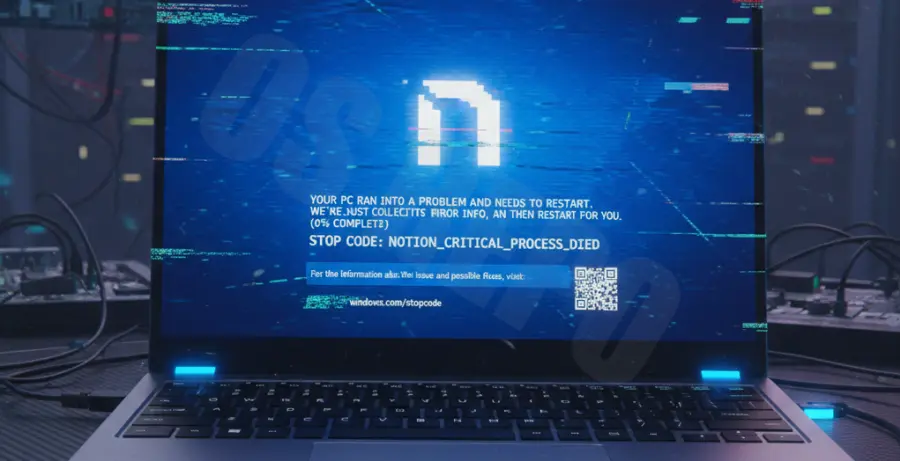
Experiencing a Blue Screen of Death (BSOD) when launching Notion is a rare but disruptive issue. This typically occurs immediately after the application window attempts to initialize or during the login phase.
The most common stop codes associated with this crash include KMODE_EXCEPTION_NOT_HANDLED, VIDEO_TDR_FAILURE, or SYSTEM_SERVICE_EXCEPTION. These codes suggest a conflict between the application’s rendering engine and your system’s hardware drivers.
Diagnosis usually points to Electron—the framework Notion is built on—clashing with GPU drivers. When Notion attempts to use Hardware Acceleration to render its interface, a driver instability triggers a kernel-level failure, resulting in the blue screen.
Troubleshooting Guide
To resolve the Notion BSOD issue, you must systematically isolate the rendering engine from the hardware. Follow these steps to restore stability to your workspace.
Disable Hardware Acceleration
Since Notion uses Chromium-based rendering, Hardware Acceleration is often the culprit. If you can open Notion briefly, toggle this off in Settings. If not, you may need to launch Notion with a flag via the Command Prompt.
Clear Notion App Cache
Corrupted local data can cause the application to hang and crash the system. You can manually delete the AppData folder for Notion to force a clean slate. Use the following command in your terminal to quickly clear the cache:
rmdir /s /q "%AppData%\Notion"Update Graphics Drivers
Outdated GPU drivers are the primary cause of VIDEO_TDR_FAILURE. Ensure your NVIDIA, AMD, or Intel drivers are fully updated to the latest stable release. Manufacturers often release patches specifically for Electron-based app compatibility.
| Root Cause | Recommended Action |
|---|---|
| GPU Driver Conflict | Clean install drivers using DDU. |
| Corrupt Installation | Reinstall Notion using the latest .exe. |
| Hardware Acceleration | Disable via Notion settings or CLI. |
Check for System File Corruption
If the BSOD persists, Windows system files may be damaged. Run the System File Checker to ensure the OS can handle the application’s requests. Use sfc /scannow in an elevated Command Prompt to repair the environment.
Prevention
To prevent future crashes, keep your Windows OS updated to the latest version. This ensures that the kernel-level components used by Notion’s framework stay compatible.
Monitor your system resources using Task Manager. If you notice Notion consuming excessive GPU memory before a crash, consider using the web version of Notion in a browser like Edge or Chrome, which may handle hardware acceleration more gracefully than the standalone desktop client.
Lastly, avoid running multiple Electron-based apps (like Discord, Slack, and Notion) simultaneously if you have limited VRAM, as this can lead to memory exhaustion and system instability.