Symptoms & Diagnosis
Experiencing a Blue Screen of Death (BSOD) during a simple npm install in a React.js project is a frustrating hurdle for Windows 11 users. This issue typically triggers a system-wide crash just as the package manager begins linking dependencies or extracting heavy binaries.
Common Stop Codes associated with this error include KMODE_EXCEPTION_NOT_HANDLED, SYSTEM_SERVICE_EXCEPTION, or IRQL_NOT_LESS_OR_EQUAL. These often point to a conflict between the Node.js runtime and Windows kernel-level drivers, specifically storage or network filters.
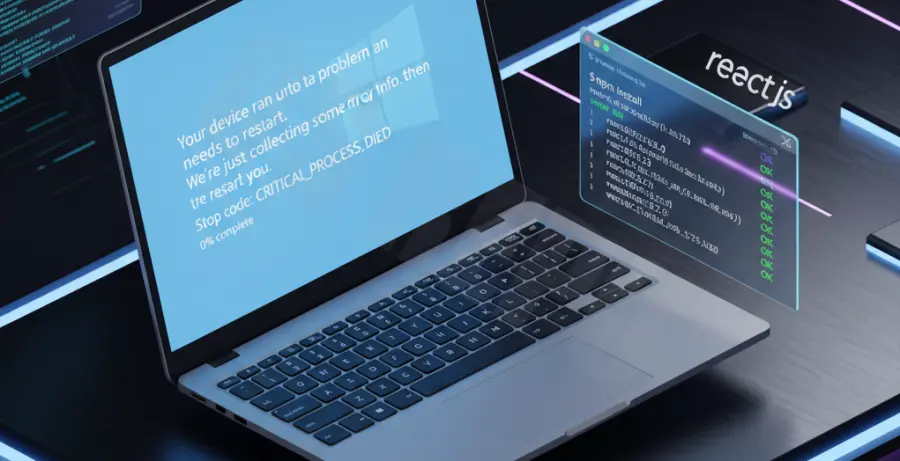
Before proceeding, check your terminal for specific error logs. If the crash happens during the “Ideal Tree” phase or while compiling native modules like node-gyp, the issue is likely rooted in your environment configuration or outdated system drivers.
Troubleshooting Guide
The first step in resolving the React BSOD is to ensure your local environment is clean. Corruption in the npm cache or the node_modules folder can cause the Windows filesystem to hang and trigger a crash.
Step 1: Clean NPM Cache and Reinstall
Run the following commands in an Administrative PowerShell or Command Prompt. Forcing a cache clear removes any corrupted metadata that might be tripping up the Windows kernel.
npm cache clean --force
rmdir /s /q node_modules
del package-lock.json
npm install
Step 2: Update Node.js and Check Version Compatibility
Using an incompatible version of Node.js with Windows 11’s security features can lead to instability. Use the table below to verify your setup.
| Component | Recommended Action | Command |
|---|---|---|
| Node.js Runtime | Use LTS (Long Term Support) | node -v |
| NPM Client | Update to latest stable | npm install -g npm@latest |
| Windows SDK | Install Build Tools | npm install --global windows-build-tools |
Step 3: Repair System Files
If the BSOD persists, Windows 11 system files may be corrupted. Use the Deployment Image Servicing and Management (DISM) tool and the System File Checker to repair the OS environment.
dism /online /cleanup-image /restorehealth
sfc /scannow
Prevention
To prevent future Windows 11 crashes during React development, follow these best practices for environment management.
- Use NVM for Windows: Always manage Node versions using NVM to avoid permission conflicts in the
C:\Program Filesdirectory. - Disable Heavy Antivirus Scans: Exclude your project development folder from real-time antivirus scanning, as file-locking can trigger system hangs.
- Update Storage Drivers: Ensure your SSD firmware and storage controller drivers are up to date via the Device Manager.
- Increase Virtual Memory: Ensure your Paging File size is managed by the system to prevent out-of-memory BSODs during heavy builds.