Symptoms & Diagnosis
When Microsoft Outlook crashes to the desktop even while running in Safe Mode, it indicates a deeper issue than simple third-party add-in conflicts. Usually, Safe Mode is the first line of defense, as it disables extensions and custom toolbar settings.
Common symptoms include the application window flashing briefly before closing, or an immediate “Outlook has stopped working” error upon launch. Because Safe Mode bypasses the most common failure points, a crash in this state suggests corruption within the core program files, the user profile, or the underlying data files (.PST or .OST).
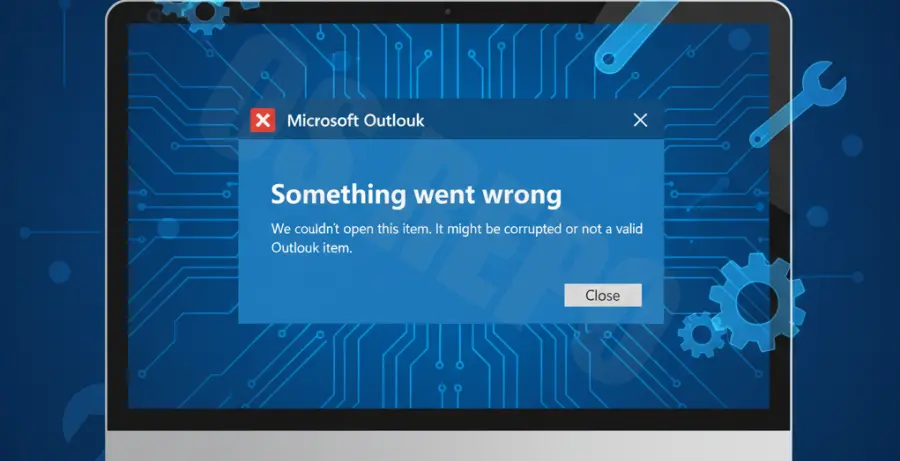
To diagnose the root cause, you should check if other Office applications are behaving similarly. If Word or Excel also fail, the issue is likely a suite-wide installation error or a Windows system conflict. If it is isolated to Outlook, the focus shifts to data integrity and profile configuration.
Troubleshooting Guide
Since Safe Mode is not resolving the crash, we must look at deeper system components. Start by checking for any stuck processes in the background that might be locking the data files.
taskkill /F /IM outlook.exe1. Repair Outlook Data Files
Corruption in your Offline Storage Table (.OST) or Personal Storage Table (.PST) is a frequent culprit for persistent crashes. Use the built-in Inbox Repair Tool (SCANPST.EXE) to validate file integrity.
For Microsoft 365 or Exchange accounts, you can safely delete the .OST file located in %localappdata%\Microsoft\Outlook. Outlook will automatically regenerate this file the next time it opens successfully.
2. Create a New Outlook Profile
A corrupted mail profile can prevent Outlook from initializing. Instead of repairing the old one, creating a clean profile often bypasses the crash loop.
| Action | Steps to Perform |
|---|---|
| Open Control Panel | Search for “Mail (Microsoft Outlook)” in the Windows search bar. |
| Show Profiles | Click “Show Profiles” and then click “Add” to create a new one. |
| Set Default | Select “Prompt for a profile to be used” and restart Outlook. |
3. Perform an Online Repair of Office
If the profile is not the issue, the application binaries themselves may be damaged. Use the “Online Repair” feature rather than the “Quick Repair” for a more comprehensive fix.
Navigate to Settings > Apps > Installed Apps, find Microsoft 365 (or Office), click the three dots, select Modify, and choose Online Repair.
Prevention
Preventing future crashes requires maintaining a healthy environment for your mail data. Avoid letting your .PST files grow beyond 20GB, as large files are significantly more prone to structural corruption.
Ensure that your antivirus software is not set to scan the Outlook data files in real-time, as this can cause file-locking conflicts. Instead, use an email-specific shield provided by your security suite.
Finally, always keep your Windows environment updated. Many Outlook crashes are actually caused by outdated graphics drivers or incompatible Windows cumulative updates that affect how the Office UI renders.
# Check Windows integrity if crashes persist
sfc /scannow