| Issue | Pixel 9 Screen Flickering / Jittering |
|---|---|
| Trigger | Adaptive Brightness & Ambient Light Sensor |
| Quick Fix | Reset Device Health Services Cache |
| Difficulty | Easy / Intermediate |
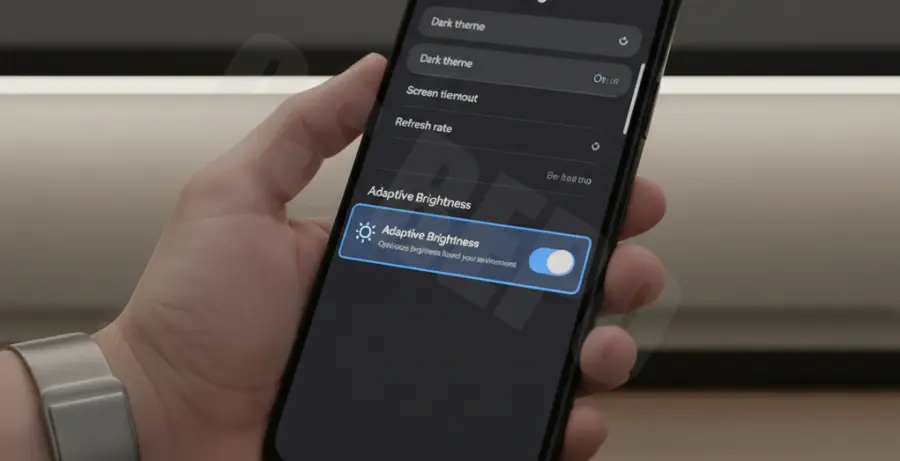
Root cause the Pixel 9 Adaptive Brightness Screen Flickering?
The Pixel 9 adaptive brightness screen flickering fix is a troubleshooting protocol used to resolve rapid, involuntary changes in display intensity. This issue typically occurs when the Google Pixel 9’s AI-driven brightness algorithm fails to interpret data from the ambient light sensor correctly.
Users experiencing this glitch often see the screen “pulse” or flicker between two brightness levels, especially in indoor lighting. This fix targets the “Device Health Services” app, which manages the brightness model learned from your manual adjustments.
While often mistaken for a hardware defect, the flickering is usually a software-level conflict between the display driver and the Adaptive Brightness machine learning model.
Step-by-Step Solutions
1. Reset Adaptive Brightness Learning Model
The most common cause of flickering is a corrupted “brightness model.” Resetting this forces the Pixel 9 to relearn your preferences and recalibrate the light sensor input.
Open Settings and navigate to Apps. Tap on See all apps and search for Device Health Services. Select Storage & cache, tap Manage space (or Clear Storage), and then click Reset adaptive brightness.
2. Use ADB to Reset Brightness Parameters
For advanced users, you can force the system to purge its brightness configuration via the Android Debug Bridge (ADB). This ensures no legacy settings from a device transfer are causing the flicker.
# Connect your Pixel 9 via USB and run:
adb shell settings delete secure brightness_adaptive_backlight_enabled
adb shell settings put secure adaptive_brightness_learning_enabled 0
3. Disable HW Overlays in Developer Options
If the flickering persists, it may be a rendering issue. Disabling Hardware Overlays forces the Android system to use the GPU for screen compositing, which can stabilize the display output.
Go to Settings > About phone and tap Build number seven times. Then go to Settings > System > Developer options. Find Disable HW overlays and toggle it ON.
4. Check for Display Driver Updates
Google frequently patches display calibration via System Updates. Ensure your Pixel 9 is on the latest build to benefit from official kernel-level fixes.
Navigate to Settings > System > Software update and tap System update to check for pending patches.