Symptoms & Diagnosis
Is your Google Pixel 9 acting sluggish, freezing on the lock screen, or becoming completely unresponsive? These issues often stem from third-party applications that are not yet optimized for the latest Tensor G4 chip or Android version.
Before jumping to a factory reset, you need to diagnose the root cause. Common symptoms include the device getting warm while idle, the touchscreen failing to register inputs, or specific apps crashing immediately upon launch.
By using Safe Mode, you can determine if the problem is baked into the system software or if a recently installed app is the culprit. In this mode, the Pixel 9 runs only with its original pre-installed applications.
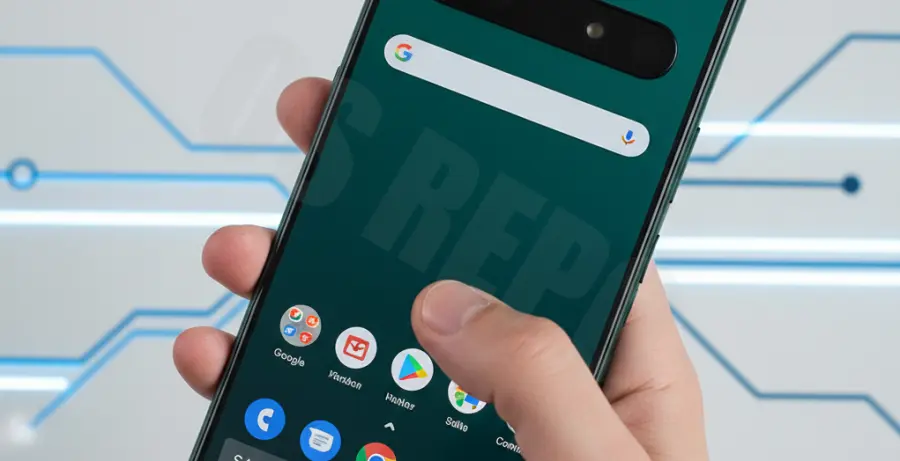
Troubleshooting Guide
If your Pixel 9 is not responding, follow these steps to trigger Safe Mode. This process varies slightly depending on whether your device is currently powered on or stuck in a boot loop.
How to Enter Safe Mode
Use the following table to identify the correct method for your current device state:
| Device State | Action Required |
|---|---|
| Powered On | Press and hold Power + Volume Up. Long-press the “Restart” icon until the Safe Mode prompt appears. |
| Powered Off / Frozen | Press Power button. When the Google logo appears, hold the Volume Down button until the phone finishes booting. |
If you have a computer handy and USB debugging is enabled, you can also force a reboot into the system interface using the Android Debug Bridge (ADB) to clear temporary glitches:
# Restart the device via ADB if buttons are unresponsive
adb reboot
What to do in Safe Mode
Once “Safe Mode” appears in the bottom-left corner of your screen, test the device functionality. If the Pixel 9 is now responsive and smooth, a third-party app is definitely the cause.
Start by uninstalling apps you downloaded right before the freezing issues began. You can uninstall apps normally while in Safe Mode.
How to Exit Safe Mode
Exiting Safe Mode is simple. Press and hold the Power button and Volume Up button simultaneously, then tap “Restart.” The phone will boot back into the normal Android environment with all your apps restored.
Prevention
To prevent future unresponsiveness on your Pixel 9, keep your software updated. Google frequently releases “Pixel Drops” that patch stability issues and improve memory management.
Check the Play Store regularly for app updates. Developers often release patches for the Pixel 9 series shortly after launch to ensure compatibility with the new hardware architecture.
Finally, avoid filling your storage to 100%. Android requires at least 10% of free space to manage cache files and system processes efficiently. Clearing the cache of heavy apps like social media or browsers can also prevent lag.