Symptoms & Diagnosis
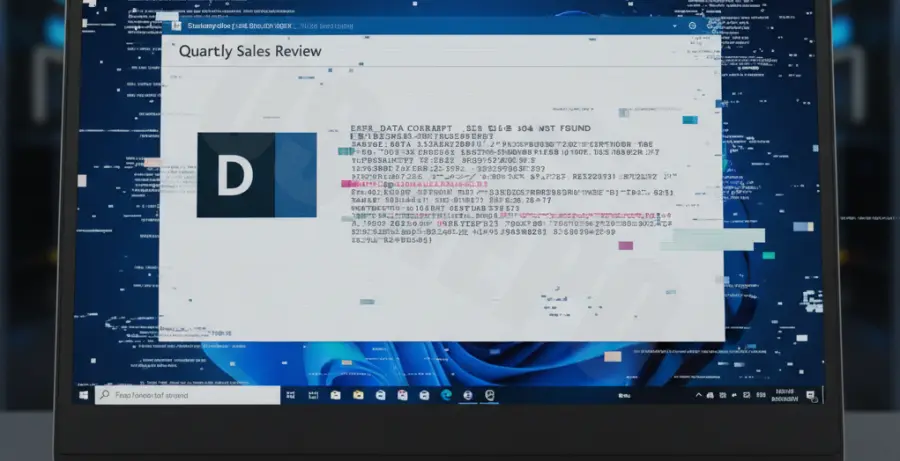
PowerPoint screen flickering on Windows 11 usually manifests as rapid flashing, black screen glitches, or UI elements disappearing during transitions. These interruptions often occur when switching between Edit Mode and Slide Show mode.
To identify the root cause, observe when the flickering starts. If it happens only during animations, it is likely a graphics processing issue. If it occurs globally across all Office apps, it may be a Windows 11 compatibility bug.
| Symptom | Potential Root Cause | Severity |
|---|---|---|
| Rapid White Flashing | GPU Hardware Acceleration | High |
| Stuttering Transitions | Outdated Graphics Drivers | Medium |
| Black Screen on Slides | Incompatible Office Add-ins | Low |
Troubleshooting Guide
The most common solution for PowerPoint screen flickering in Windows 11 is disabling Hardware Graphics Acceleration. This feature sometimes conflicts with the Windows 11 Desktop Window Manager (DWM).
Disable Hardware Acceleration
Open PowerPoint and navigate to File > Options > Advanced. Scroll down to the Display section and check the box for “Disable hardware graphics acceleration.” Restart the application to apply changes.
Update Graphics Drivers
Inconsistent drivers often cause rendering loops. You can check your current driver version using the following command in PowerShell to ensure it meets the minimum requirements for Windows 11:
Get-WmiObject Win32_VideoController | Select-Object Name, DriverVersionRepair Microsoft Office
If the flickering persists, the installation files might be corrupted. Go to Settings > Apps > Installed Apps. Locate Microsoft Office, click the three dots, select Modify, and choose Online Repair.
Prevention
To prevent future flickering, always keep your Windows 11 build updated. Microsoft frequently releases patches for the Windows Display Driver Model (WDDM) that specifically target Office suite glitches.
Minimize the use of heavy third-party add-ins. Some legacy plugins are not optimized for the Windows 11 transparency effects and can trigger UI refreshes that look like flickering.
Finally, ensure your power plan is set to “Best Performance.” Windows 11 “Power Saving” modes can throttle the GPU, leading to frame drops and visual artifacts during complex PowerPoint presentations.