Symptoms & Diagnosis: Why Git is Overheating Your System
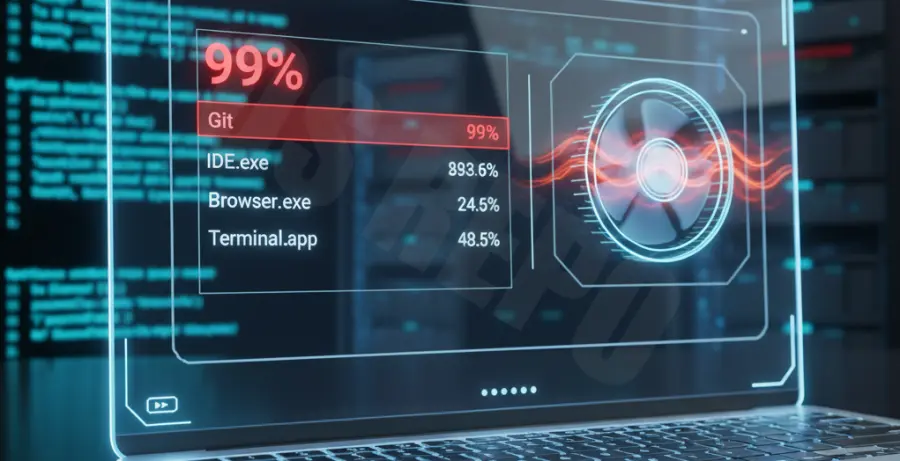
If your laptop fan is screaming or your system feels sluggish, Git background processes are the likely culprit. Users often report the git-remote-https or git status commands consuming 100% of a single CPU core.
Common symptoms include high resource usage in Task Manager or Activity Monitor, even when you aren’t actively using a terminal. This typically happens because an IDE or a background script is triggering Git checks too frequently on a large repository.
Troubleshooting Guide: Stopping Background Git Processes
The most common cause of Git running constantly is the “Autofetch” feature in modern IDEs like VS Code. This feature periodically runs git fetch to sync with your remote, which can bottleneck systems on large projects.
1. Disable VS Code Git Autofetch
To stop VS Code from triggering background Git tasks, navigate to your settings and search for “Git: Autofetch”. Uncheck the box to prevent the editor from calling Git in the background every few minutes.
2. Audit Running Git Processes
Before making permanent changes, identify exactly which Git commands are hanging. Use the following command to find and terminate rogue processes:
# Find all running git processes
ps aux | grep git

# Forcefully kill all background git processes
killall git
3. Configuration Fixes
Sometimes the issue stems from Git’s internal file system monitoring or large pack files. You can optimize how Git handles background tasks by adjusting your global configuration.
| Setting | Command | Benefit |
|---|---|---|
| Disable Refresh |
|
Stops Git from automatically checking file timestamps. |
| Enable FSMonitor |
|
Reduces CPU load by using OS-native file monitoring. |
| Disable GC |
|
Prevents automatic background garbage collection. |
Prevention: Keeping Git Resource Usage Low
To ensure Git doesn’t start hogging resources again, follow these long-term optimization strategies.
- Optimize Large Repositories: Use
git gc --prune=nowregularly to clean up unnecessary files and compress your local database. - Selective Indexing: If using a Windows machine, exclude your project folders from Windows Defender real-time scanning, as it often clashes with Git operations.
- Monitor Extensions: Disable third-party Git extensions (like GitLens) temporarily to see if they are the ones triggering constant background refreshes.
- Use Sparse Checkout: For massive repositories, use
git sparse-checkoutto only track the directories you are actively working on.