Symptoms & Diagnosis
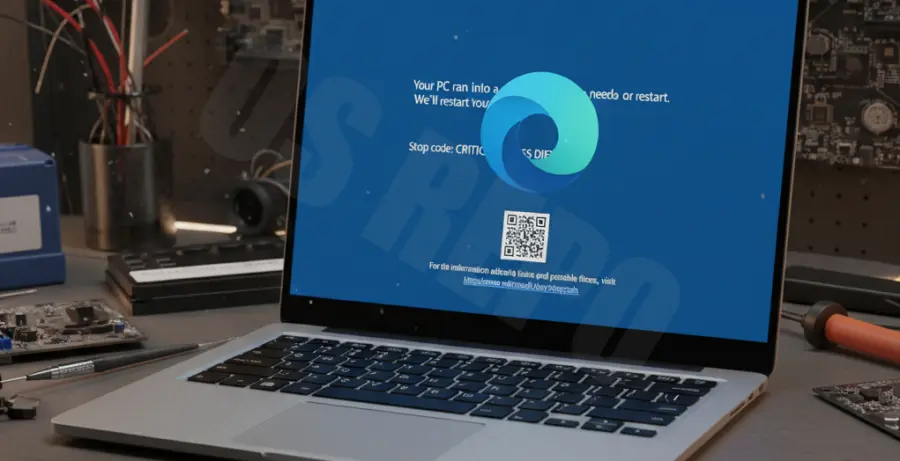
Microsoft Edge BSOD (Blue Screen of Death) errors usually occur when the browser triggers a kernel-level conflict. You might see errors like “KMODE_EXCEPTION_NOT_HANDLED” or “SYSTEM_SERVICE_EXCEPTION” pointing to msedge.exe.
Before proceeding, identify the specific stop code on your blue screen. This helps determine if the issue is a corrupt browser file or a deeper driver conflict with your hardware.
| Common BSOD Code | Likely Cause |
|---|---|
| IRQL_NOT_LESS_OR_EQUAL | Driver or Memory conflict |
| PAGE_FAULT_IN_NONPAGED_AREA | Corrupt Edge installation files |
| DPC_WATCHDOG_VIOLATION | Hardware acceleration conflict |
Troubleshooting Guide
Since Microsoft Edge is integrated into Windows, you cannot uninstall it via the traditional Control Panel. The most effective way to “reinstall” and fix BSOD issues is through the Settings repair tool or PowerShell.
Method 1: The Settings Repair Tool
Navigate to Settings > Apps > Installed Apps. Locate Microsoft Edge, click the three dots, and select Modify. Click Repair to download and reinstall the browser files without losing data.
Method 2: Forced Reinstall via PowerShell
If the standard repair fails and the system continues to crash, you can use an elevated PowerShell command to force a re-registration of the browser components.
Get-AppXPackage -AllUsers -Name Microsoft.MicrosoftEdge | Foreach {Add-AppxPackage -DisableDevelopmentMode -Register "$($_.InstallLocation)\AppXManifest.xml" -Verbose}Run the command above as Administrator. This resets the package links and often resolves underlying stability issues causing the Blue Screen.
Method 3: Resetting User Profile Data
Corrupt cache or user profiles can trigger memory leaks. Navigate to %LocalAppData%\Microsoft\Edge\User Data and rename the “Default” folder to “Default.old”. Edge will generate a clean profile upon restart.
Prevention
To prevent future BSOD events while browsing, disable Hardware Acceleration in Edge settings. This stops the browser from interacting directly with your GPU, which is a common cause of system crashes.
Always keep your Graphics Drivers updated. Most browser-related blue screens are actually caused by outdated NVIDIA or AMD drivers failing to process Chromium-based requests properly.
Finally, run the System File Checker regularly to ensure your Windows image remains healthy and free of corruption that could affect integrated apps.