| Problem Type | Primary Cause | Fastest Solution |
|---|---|---|
| Headset Not Found | TCC Permission Block | Reset Bluetooth Permissions |
| Pairing Failed Error | Bluetooth Cache Conflict | Run pkill bluetoothd |
| Audio but no Mic | Slack App Cache | Clear Slack App Data |
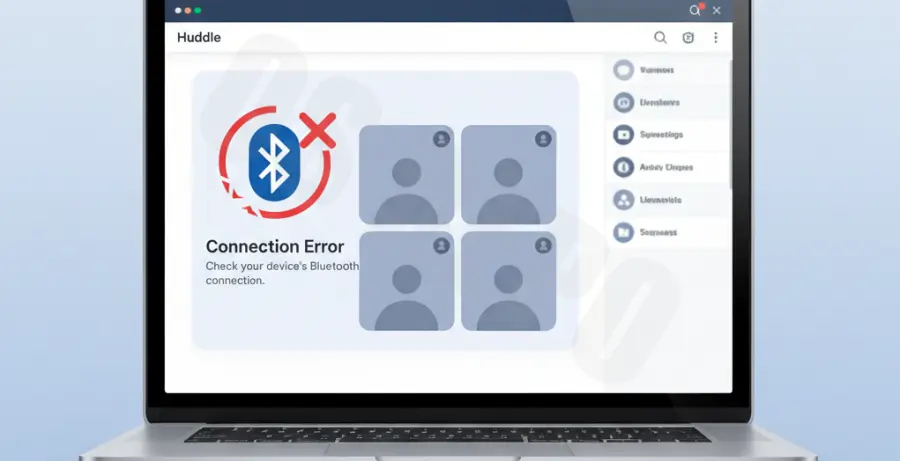
What is slack bluetooth pairing issues mac?
Slack bluetooth pairing issues mac refers to a specific technical failure where the Slack desktop application fails to recognize, connect, or maintain a stable link with Bluetooth peripherals. This usually affects wireless headsets, earbuds, and external microphones.
Unlike system-wide Bluetooth failures, these issues are often localized to the Slack environment. You might find that your AirPods work perfectly with Spotify or YouTube, yet remain “Unavailable” or “Disconnected” within a Slack Huddle or call.
The root cause typically stems from macOS security permissions (Transparency, Consent, and Control), corrupt plist files, or a bogged-down Bluetooth daemon. Because Slack relies on specific Chromium-based drivers to handle media, any mismatch in the macOS audio stack can trigger a “Pairing Failed” alert.
Step-by-Step Solutions
1. Force Restart the Bluetooth Daemon
If your Mac shows the device as connected but Slack cannot see it, the Bluetooth background process may be hung. You can force macOS to restart this service via the Terminal.
sudo pkill bluetoothdEnter your admin password when prompted. Your Bluetooth will disconnect momentarily and then automatically restart. Re-open Slack to check the connection.
2. Clear Slack App Cache
Slack stores temporary hardware configurations that can become corrupted. Clearing the cache forces the app to re-scan for available Bluetooth hardware.
Open Slack, click on Help in the top menu bar, navigate to Troubleshooting, and select Clear Cache and Restart.
3. Check macOS Microphone Permissions
macOS often blocks Slack’s access to Bluetooth devices for privacy reasons. If permissions are denied, the pairing process will fail at the application level.
Go to System Settings > Privacy & Security > Microphone. Ensure the toggle for Slack is turned ON. Repeat this process for the Bluetooth category within the same Privacy menu.
4. Reset the Bluetooth Module (macOS Monterey and Older)
If you are on an older version of macOS, you can manually reset the module. Hold Shift + Option and click the Bluetooth icon in the menu bar. Select “Reset the Bluetooth module” and restart your Mac.
5. Update Slack and macOS
Legacy versions of Slack may struggle with the latest macOS Sonoma or Sequoia audio drivers. Always ensure you are running the latest build by clicking Slack > Check for Updates.