Immediate Fix
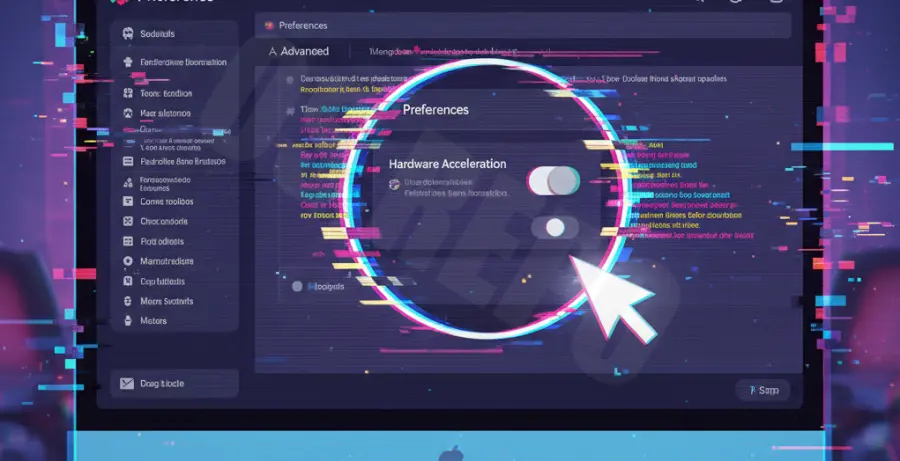
The fastest way to stop Slack screen flashing during a screen share is to disable hardware acceleration. This prevents the application from relying on your GPU for rendering, which is often the source of the conflict.
Follow these steps to apply the fix:
- Open the Slack desktop application.
- Click on your workspace name or profile icon in the sidebar.
- Navigate to Preferences and select the Advanced tab.
- Scroll down to the Hardware Acceleration section.
- Uncheck the box labeled “Use hardware acceleration when available”.
- Restart Slack to apply the changes.
Technical Explanation
Slack is built using the Electron framework, which utilizes the Chromium engine to render its user interface. When you share your screen, Slack must encode video frames in real-time while simultaneously rendering the app’s UI.
Screen flickering occurs when there is a synchronization error between the GPU drivers and the Chromium rendering pipeline. This “handshake” failure causes the compositor to drop frames or flash black rectangles as it struggles to allocate video memory for the capture stream.
By disabling hardware acceleration, you force Slack to use software rendering (CPU-based), which bypasses the buggy GPU driver instructions causing the visual artifacts.
Alternative Methods
If disabling hardware acceleration does not resolve the issue, you may need to address underlying system conflicts or corrupted application data.
Method 1: Clear Slack App Cache
Corrupted cache files can interfere with how Slack handles video streams. You can manually purge the cache to reset the environment. On Windows, use the app settings, or on macOS/Linux, use the terminal:
# For macOS users: purge Slack cache via Terminal
rm -rf ~/Library/Application\ Support/Slack/Cache/*
rm -rf ~/Library/Application\ Support/Slack/Service\ Worker/CacheStorage/*
Method 2: Update Graphics Drivers and OS
Outdated display drivers are a common culprit for screen share instability. Ensure your system is running the latest stable version of your GPU firmware.
| Operating System | Recommended Action |
|---|---|
| Windows 10/11 | Open Device Manager > Display Adapters > Right-click GPU > Update Driver. |
| macOS | Go to System Settings > General > Software Update to install latest graphics patches. |
| Linux | Update your distribution’s kernel and Mesa drivers via your package manager (apt, dnf, or pacman). |
Method 3: Disable Windows Hardware-Accelerated GPU Scheduling
On Windows machines, a system-level feature called “Hardware-accelerated GPU scheduling” can conflict with Slack’s screen capture API. Try toggling this off in Settings > System > Display > Graphics > Change default graphics settings.