Immediate Fix: Verify the Internet Gateway Route
If your EC2 instance is not responding, the most common cause is a missing route to the Internet Gateway (IGW) in the subnet’s route table. Without a 0.0.0.0/0 entry, the instance cannot communicate with the public internet.
Follow these steps to restore connectivity immediately:
| Step | Action | Expected Value |
|---|---|---|
| 1. Identify Subnet | Go to EC2 Dashboard > Instances > Networking Tab. | Subnet ID (e.g., subnet-abc123) |
| 2. Open Route Table | Click the Subnet ID > Route Table tab. | rtb-xyz456 |
| 3. Edit Routes | Click “Edit routes” and add 0.0.0.0/0. | Target: igw-789xyz |
Once you save the changes, traffic should begin flowing to your public IP address immediately, provided your Security Groups allow the traffic.
Technical Explanation: The VPC Routing Logic
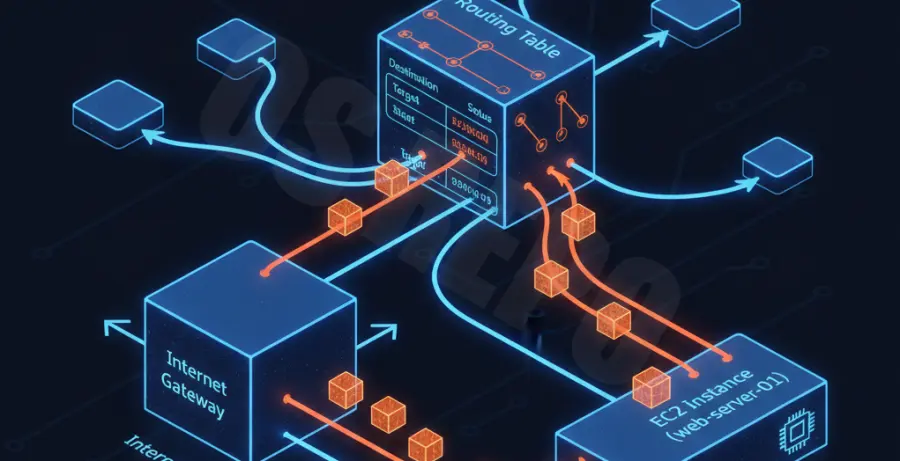
Every VPC has an implicit router. It uses route tables to determine where network traffic from your subnets or gateways is directed. Each subnet in your VPC must be associated with a route table.
By default, every route table contains a local route for communication within the VPC. This “local” route cannot be deleted or modified. For a subnet to be “public,” it must have a custom route pointing destination 0.0.0.0/0 to an Internet Gateway attached to the VPC.
If your EC2 instance is in a private subnet, it requires a NAT Gateway route instead of an Internet Gateway. In this scenario, the destination remains 0.0.0.0/0, but the target becomes the NAT Gateway ID (nat-…).
Alternative Methods: CLI and Reachability Analyzer
If you prefer using the command line or need to automate the verification process, you can use the AWS CLI to describe your routing configuration.
Run the following command to check the routes associated with a specific route table ID:
aws ec2 describe-route-tables \
    --route-table-ids rtb-0a1b2c3d4e5f6g7h8 \
    --query 'RouteTables[*].Routes'
If the routing appears correct but the instance is still not responding, use the VPC Reachability Analyzer. This tool performs a static configuration analysis to determine if a path exists between your source (e.g., an IGW) and the destination (your EC2 instance).
Common Troubleshooting Checklist
- Ensure the Internet Gateway is actually “Attached” to the VPC.
- Verify that the “Source/Dest. Check” is disabled if the instance is acting as a NAT appliance.
- Check if the Network ACLs (NACLs) are blocking traffic at the subnet boundary.