| Issue | Common Cause | Primary Solution |
|---|---|---|
| WinFSP S3 Drive BSOD | Outdated WinFSP drivers or memory leaks | Update WinFSP to the latest stable version |
| SYSTEM_SERVICE_EXCEPTION | Driver conflict with Rclone or Mountpoint | Update mounting tool and adjust cache settings |
| IRQL_NOT_LESS_OR_EQUAL | Network buffer overflow during S3 sync | Limit concurrent transfers and VFS cache size |
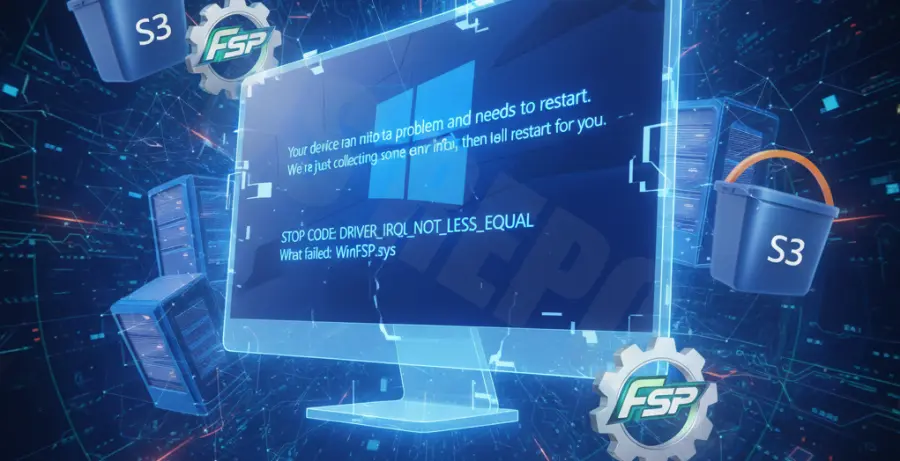
What is WinFSP S3 Drive BSOD?
The WinFSP S3 drive BSOD (Blue Screen of Death) occurs when the Windows File System Proxy (WinFSP) driver encounters a critical error while communicating with an Amazon S3 bucket. This usually happens when users map S3 as a local network drive using tools like Rclone, Mountpoint for S3, or Mountain Duck.
When the driver fails to handle system calls or memory allocation correctly, Windows triggers a stop error to prevent data corruption. This is often caused by version mismatches between the driver and the operating system, or improper configuration of the virtual file system (VFS) cache.
Step-by-Step Solutions
1. Update WinFSP and Mounting Software
Most BSOD issues in WinFSP are resolved in newer releases. Compatibility with Windows 10 and 11 updates requires the latest driver logic.
First, uninstall your current version of WinFSP. Download the latest release from the official WinFSP GitHub repository. Ensure you also update Rclone or whichever utility you use to mount the S3 bucket.
# Check your rclone version
rclone version

# If outdated, download the latest version and replace the binary
2. Optimize Rclone VFS Cache Settings
High-throughput transfers to S3 can overwhelm the WinFSP driver if the cache is not managed. A common cause of crashes is the system running out of kernel memory because too many files are being handled simultaneously.
Modify your mount command to use a more stable cache mode and limit the memory usage:
rclone mount remote:bucket X: --vfs-cache-mode full --vfs-max-backlog 100 --buffer-size 16M --vfs-cache-max-size 10G3. Increase System I/O Request Packets (IRP) Stack Size
If you are mounting multiple S3 buckets, the default I/O request limit might be reached. This can be adjusted in the Windows Registry, though it is recommended to try driver updates first.
Navigate to `HKEY_LOCAL_MACHINE\SYSTEM\CurrentControlSet\Services\LanmanServer\Parameters` and ensure the IRPStackSize is set to a higher decimal value, such as 32.
4. Analyze the Minidump File
If the BSOD persists, you need to identify the specific driver causing the crash. Use a tool like BlueScreenView or WinDbg to open the files in `C:\Windows\Minidump`.
Look for the “Caused By Driver” column. If `winfsp-x64.sys` is listed, the issue is definitely the proxy. If a network driver like `tcpip.sys` is listed, the problem might be related to your network interface card (NIC) drivers reacting to the S3 stream.
5. Use Mountpoint for S3 (AWS Official Tool)
If WinFSP continues to be unstable for your specific S3 use case, consider switching to “Mountpoint for S3.” This is an officially supported AWS client specifically optimized for high-performance S3 access on Windows and Linux, which bypasses some of the common hurdles found in generic FUSE/WinFSP implementations.