Immediate Fix
If you are staring at a black screen with a (initramfs) prompt, your filesystem likely has errors that prevented a clean boot. The most effective way to fix this is by manually running the File System Check (fsck) utility.
Follow these steps to repair the disk and boot into Ubuntu 24.04:
# 1. Identify your root partition (usually listed in the error message)
# If not sure, try the most common one:
fsck /dev/sda2 -y

# 2. If your system uses an NVMe drive, the command might look like this:
fsck /dev/nvme0n1p2 -y

# 3. Once the process finishes and says 'FILE SYSTEM WAS MODIFIED', type:
reboot
The -y flag automatically answers “yes” to all repair prompts, which is necessary if there are hundreds of minor inconsistencies.
Technical Explanation
The initramfs (initial RAM filesystem) is a small environment that loads into memory to prepare your computer’s hardware before the main Ubuntu 24.04 operating system starts.
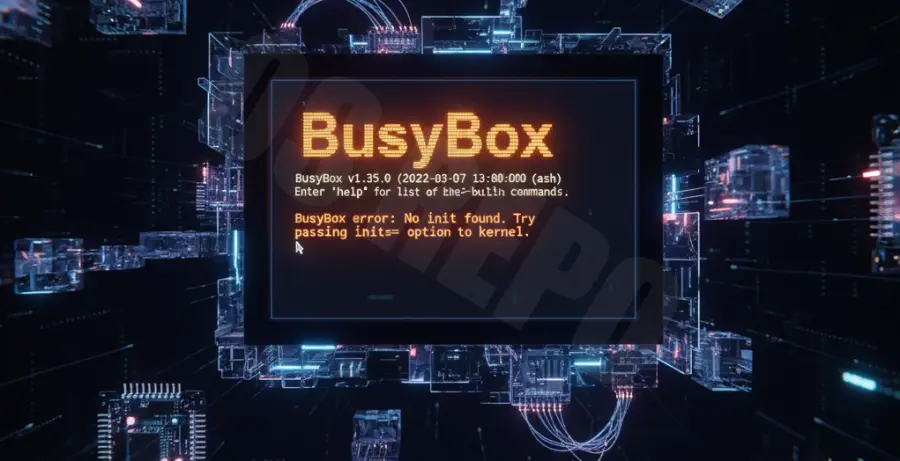
When Ubuntu encounters a “Black Screen BusyBox” error, it means the kernel could not mount the root partition. This usually happens because the filesystem is marked as “dirty” or contains metadata errors.
| Cause | Description |
|---|---|
| Unclean Shutdown | Power loss or hard reset during a write operation. |
| Disk Degradation | Physical bad sectors on the SSD or HDD. |
| Update Interruption | System crash during a kernel or driver update. |
By entering the BusyBox shell, Ubuntu is giving you a minimal toolkit to fix the disk without needing a separate bootable USB.
Alternative Methods
If the standard fsck command within the initramfs shell does not work, you may need to use a Live Ubuntu USB to perform a more thorough repair.
Method 1: Live USB Repair
Boot from an Ubuntu 24.04 installation USB and select “Try Ubuntu.” Open the terminal and identify your partitions using lsblk. Once identified, run the check on the unmounted drive.
sudo fsck -f /dev/sdXYMethod 2: Check SMART Status
If this error recurs frequently, your drive might be failing. You can check the hardware health using the smartmontools package or the “Disks” utility in the Ubuntu GUI environment.
Frequent initramfs errors are often the first warning sign of a dying SSD. Ensure you have a fresh backup of your “Home” directory once you regain access to the desktop.