| Cause | Primary Solution | Command to Run |
|---|---|---|
| Full Disk Space | Clean package cache | sudo apt clean |
| Broken Permissions | Fix .Xauthority ownership | chown user:user ~/.Xauthority |
| Broken Desktop Env | Reinstall GNOME Shell | sudo apt install –reinstall ubuntu-desktop |
| NVIDIA/Wayland Conflict | Disable Wayland | Set WaylandEnable=false in gdm3/custom.conf |
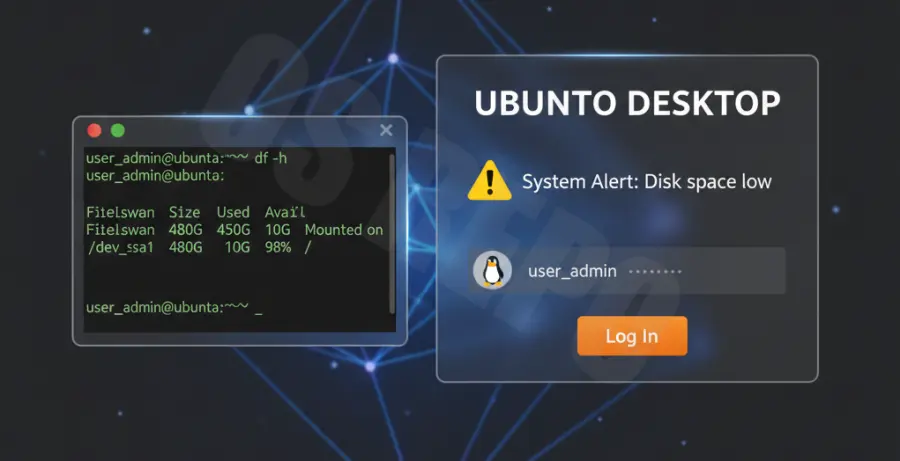
What is Ubuntu 24.04 Failed to Start Session?
The “Failed to start session” error in Ubuntu 24.04 (Noble Numbat) occurs when the display manager (GDM3) cannot successfully launch your graphical desktop environment after you enter your password. Instead of reaching your desktop, you are either kicked back to the login screen or left with a black screen.
This issue is typically caused by corrupted configuration files in the user’s home directory, missing system packages after an update, or incompatibility between the NVIDIA graphics drivers and the Wayland display protocol. It is a common hurdle for users performing fresh installations or upgrading from older LTS versions.
Step-by-Step Solutions
Before starting, press Ctrl + Alt + F3 on your keyboard to open the TTY terminal. Log in with your username and password to execute the following commands.
1. Free Up System Disk Space
A common reason for session failure is a disk that is 100% full, preventing the creation of temporary session files. Check your disk usage first.
df -h
sudo apt autoremove
sudo apt clean
2. Fix Home Directory Permissions
If the permissions for your `.Xauthority` or `.ICEauthority` files have changed to “root,” Ubuntu cannot write to them to start your session.
sudo chown $USER:$USER ~/.Xauthority
sudo chown $USER:$USER ~/.ICEauthority
sudo chmod 600 ~/.Xauthority
3. Reinstall the Ubuntu Desktop Environment
If the session fails due to missing or corrupted GNOME components, reinstalling the core desktop package often resolves the conflict.
sudo apt update
sudo apt install --reinstall ubuntu-desktop gnome-shell gdm3
sudo systemctl restart gdm3
4. Disable Wayland (For NVIDIA Users)
Ubuntu 24.04 uses Wayland by default, which can conflict with certain NVIDIA drivers. Disabling it forces the system to use Xorg.
sudo nano /etc/gdm3/custom.confFind the line `#WaylandEnable=false` and remove the `#` to uncomment it. Save (Ctrl+O) and Exit (Ctrl+X), then reboot.
5. Repair Broken Packages
If an update was interrupted, your system might have “half-installed” packages that prevent the desktop service from starting.
sudo dpkg --configure -a
sudo apt install -f
sudo reboot