Immediate Fix
The error code 0x80070005 is a standard Windows “Access Denied” message. It occurs when the VS Code installer lacks the necessary permissions to write files to the destination folder.
Run as Administrator
The quickest solution is to elevate the installer’s privileges. Right-click the VS Code setup file and select Run as administrator. This allows the process to bypass standard folder restrictions.
Switch to the User Installer
Visual Studio Code offers two types of installers: System and User. If the System installer fails, download the User Installer from the official website. This version installs VS Code in your local app data folder, which does not require administrative rights.
Disable Third-Party Antivirus
Active security software often blocks installers from modifying the C:\Program Files directory. Temporarily disable your antivirus or Windows Defender real-time protection and attempt the installation again.
Technical Explanation
At its core, error 0x80070005 signifies a file system permission conflict. Windows throws this error when a process attempts to modify a protected directory or file without an authorized Security Identifier (SID).
In the context of VS Code, this usually happens during an update or a fresh install if the %LocalAppData%\Programs\Microsoft VS Code folder is locked by another process or has inherited restrictive permissions.
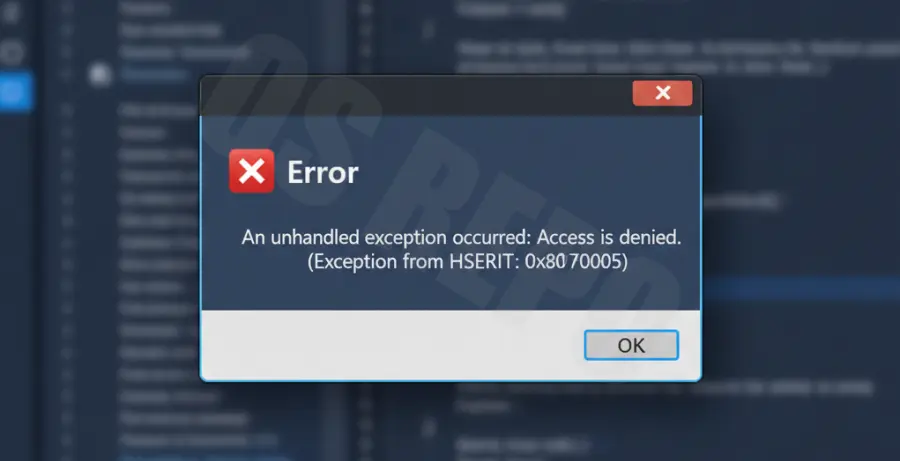
This error is also common if you previously installed VS Code as an administrator but are now trying to update it as a standard user. The mismatch in ownership prevents the installer from overwriting existing binaries.
Alternative Methods
If the standard fixes do not work, you can manually clear the installation path or use the portable version of the editor.
Manual Folder Cleanup
Sometimes, “ghost” processes leave files behind. Open your terminal and run the following command to ensure no VS Code instances are running before you delete the installation folder:
taskkill /F /IM code.exeAfter running the command, navigate to the following directories and delete any remaining “Microsoft VS Code” folders:
| Installer Type | Default Path |
|---|---|
| User Installer | %LocalAppData%\Programs\Microsoft VS Code |
| System Installer | C:\Program Files\Microsoft VS Code |
Use the Portable (.zip) Version
If you cannot resolve the permission issues on your OS, download the .zip version of VS Code. Extract the contents to a folder where you have full control, such as a dedicated C:\Tools directory or a secondary drive. This bypasses the Windows Installer service entirely.