Immediate Fix
If your PowerPoint update is stuck or failing to trigger automatically, you can force the process through the internal application settings. This bypasses the standard background schedule.
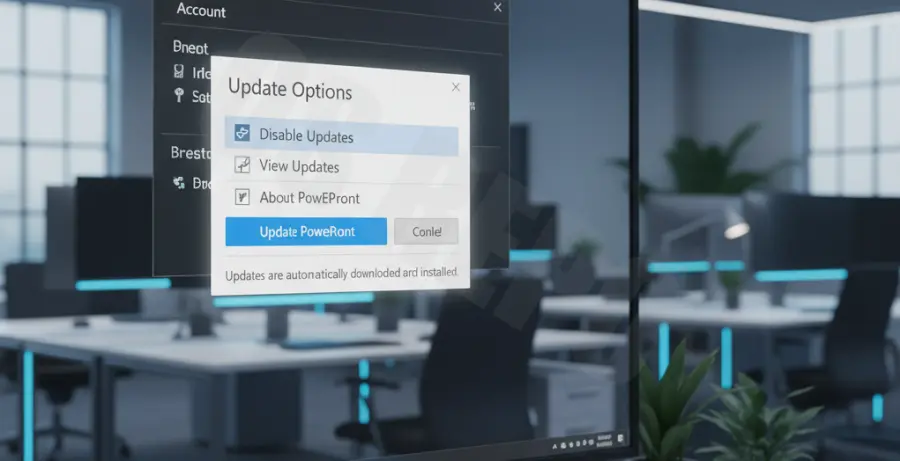
Open PowerPoint and navigate to File > Account. On the right-hand side, click Update Options and select Update Now. This command forces the Office Click-to-Run service to ping Microsoft servers immediately.
If the update window appears but does not progress, open the Task Manager (Ctrl + Shift + Esc). Locate any instances of “PowerPoint” or “Office Background Task” and end them. Restart the update process once the processes are cleared.
Technical Explanation
PowerPoint updates typically fail due to conflicts in the Microsoft Office Click-to-Run (C2R) service. This service handles the streaming and installation of updates in the background without requiring a full re-install.
Common failure points include locked files by hidden processes or corrupted local metadata. When you “force” an update, you are overriding the default timer that prevents the system from constantly checking for new versions, which can sometimes result in a “stalled” state.
Network security protocols or third-party firewalls can also block the specific CDN endpoints used by Microsoft. In these cases, the manual trigger forces the application to re-authenticate the connection to the update servers.
Alternative Methods
Force Update via Command Line
For a more aggressive approach, you can trigger the update utility directly through the command line. This is particularly useful if the PowerPoint UI is unresponsive.
"C:\Program Files\Common Files\microsoft shared\ClickToRun\OfficeC2RClient.exe" /update userTo target a specific version or trigger a full repair update, use the following syntax:
"C:\Program Files\Common Files\microsoft shared\ClickToRun\OfficeC2RClient.exe" /update user displaylevel=true forceappshutdown=trueComparison of Update Strategies
Depending on your current system state, different methods provide varying levels of success. Use the table below to choose the right path.
| Method | Difficulty | Success Rate | Best For |
|---|---|---|---|
| UI Manual Trigger | Low | Moderate | Routine updates |
| CMD Force Utility | Medium | High | Stuck update bars |
| Office Online Repair | High | Very High | Corrupted installations |
If these methods fail, the most reliable fallback is the “Online Repair” feature located in the Windows Settings app under “Apps & Features.” This effectively re-downloads the latest version of PowerPoint while preserving your settings.