Symptoms & Diagnosis
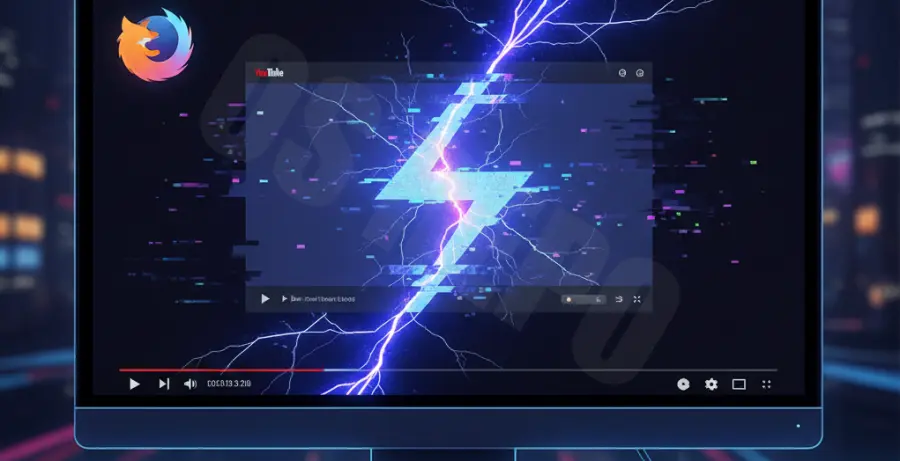
Firefox flickering on YouTube typically manifests as rapid flashing, black frames, or horizontal lines appearing during video playback. These visual artifacts can be distracting and may even lead to browser crashes if left unaddressed.
The issue often stems from a conflict between the browser’s rendering engine and your graphics hardware. In some cases, it might be triggered by specific YouTube features like “Ambient Mode” or high-dynamic-range (HDR) content.
To identify the root cause, refer to the diagnostic table below:
| Symptom | Potential Cause | Urgency |
|---|---|---|
| Black flickering on full-screen | Hardware Acceleration Conflict | High |
| Stuttering with “Ambient Mode” | GPU Resource Exhaustion | Medium |
| Screen tearing during scroll | Outdated Graphics Drivers | Medium |
Troubleshooting Guide
The most effective way to stop Firefox flickering on YouTube is to adjust how the browser handles video decoding. Follow these steps in order.
1. Disable Hardware Acceleration
Hardware acceleration allows Firefox to use your GPU to load videos faster. However, if the driver is incompatible, it causes flickering.
Navigate to Settings > General > Performance. Uncheck “Use recommended performance settings” and then uncheck “Use hardware acceleration when available.” Restart Firefox.
2. Disable YouTube Ambient Mode
YouTube’s “Ambient Mode” creates a glowing effect around the video player. This feature is known to cause flickering on certain Firefox versions.
While playing a video, click the Settings (gear icon) on the video player and toggle Ambient mode to Off.
3. Modify about:config Settings
Advanced users can force Firefox to use specific rendering layers. This often bypasses flickering issues caused by WebRender.
# Type about:config in the address bar
# Search for: gfx.webrender.all
# Set to: false
# Search for: layers.acceleration.disabled
# Set to: true
Restart your browser after making these changes to ensure the new rendering paths are active.
Prevention
To prevent future flickering issues, ensure that your graphics drivers are always up to date. Manufacturers like NVIDIA, AMD, and Intel frequently release patches specifically for browser-based video playback bugs.
Regularly clear your browser cache to remove corrupted script files that might interfere with the YouTube player interface. You can do this under Settings > Privacy & Security > Cookies and Site Data.
Lastly, keep Firefox updated to the latest stable version. Mozilla frequently updates the browser to improve compatibility with YouTube’s evolving video delivery technologies.