Symptoms & Diagnosis
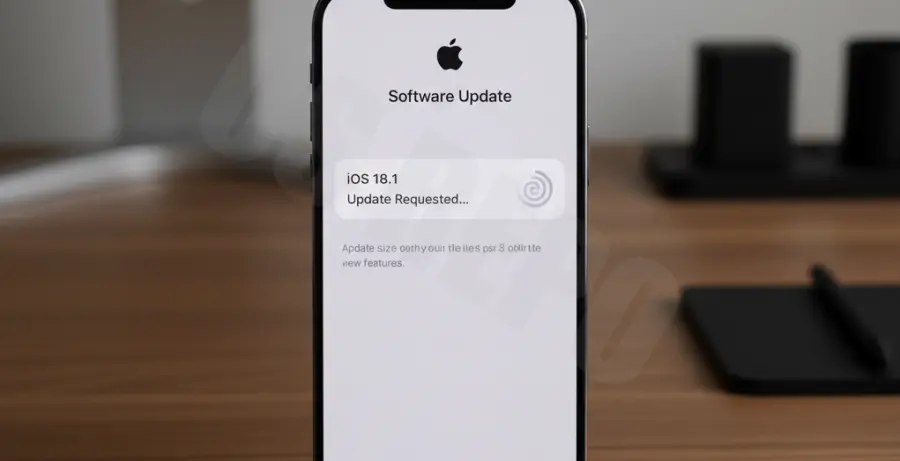
When the iPhone 16 Pro displays “Update Requested” for an extended period, it indicates a communication breakdown between your device and Apple’s servers. Typically, this stage should only last a few minutes while the server validates the request and prepares the download queue.
If you have been stuck on this screen for more than 15 minutes, the process has likely stalled. Common triggers include server congestion during peak release windows, intermittent Wi-Fi connectivity, or local software glitches in the iOS update daemon.
Before proceeding, check the following diagnostic table to identify the likely cause:
| Symptom | Potential Root Cause | Urgency |
|---|---|---|
| Spinning wheel persists | Apple Server Timeout | Low (Wait & Retry) |
| Greyed out “Download and Install” | Network Instability | Medium (Reset Network) |
| Progress bar does not move | Corrupted Update Cache | High (Delete Update) |
Troubleshooting Guide
To resolve the “Update Requested” hang, follow these technical steps in order. These methods refresh the handshake between the iPhone 16 Pro and the update server.
1. Force Restart the iPhone 16 Pro
A force restart clears temporary cache files and restarts all background services, including the update manager.
Quickly press and release the Volume Up button. Quickly press and release the Volume Down button. Press and hold the Side Button until the Apple logo appears.
2. Reset Network Settings
Sometimes, DNS settings or saved Wi-Fi configurations prevent the iPhone from reaching the update server. You can simulate a network diagnostic via the terminal if connected to a Mac, or perform a manual reset on the device.
# Technical check for network reachability to Apple's update servers
ping -c 4 mesu.apple.com
On your iPhone, go to Settings > General > Transfer or Reset iPhone > Reset > Reset Network Settings. Note that this will erase saved Wi-Fi passwords.
3. Delete the Stuck Update File
If the download began but corrupted the temporary file, you must remove it to start fresh. Navigate to Settings > General > iPhone Storage. Locate the iOS update file in the list, tap it, and select Delete Update. Return to the Software Update menu to try again.
Prevention
To ensure your iPhone 16 Pro receives future updates without getting stuck, follow these maintenance protocols:
Optimize Storage: Always maintain at least 10GB of free space. The iPhone requires additional “working room” to unpack and verify the update files after the download is complete.
Use a Reliable Power Source: Connect your device to a charger. iOS often throttles update requests if the battery is below 50% or if “Low Power Mode” is enabled.
Avoid Peak Hours: Major iOS releases cause massive traffic on Apple’s Content Delivery Networks (CDNs). Attempting the update 24 to 48 hours after a release significantly reduces the chance of getting stuck on “Update Requested.”