Symptoms & Diagnosis
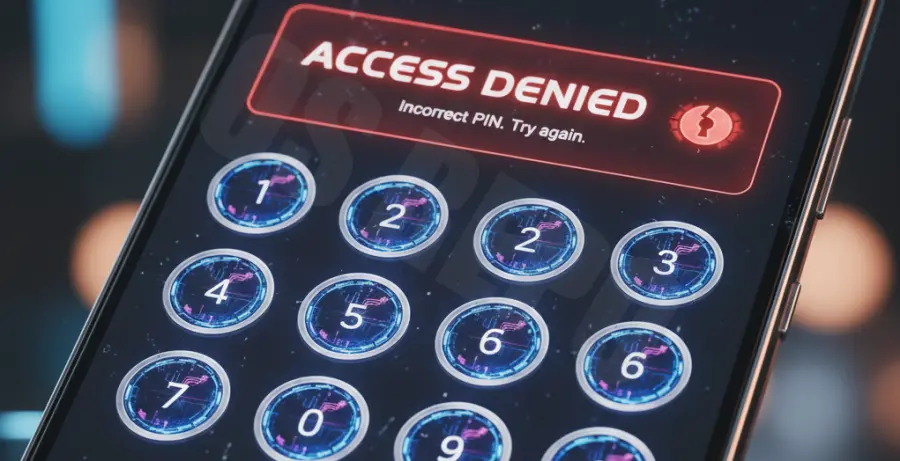
The Galaxy S25 Ultra is a powerhouse, but a PIN login failure can render the device inaccessible. Users often report the “Incorrect PIN” message even when entering the right digits. This usually stems from a software glitch in the biometric security layer or a corrupted cache after a system update.
Before attempting a factory reset, you must identify the specific behavior of the device. Is the screen completely unresponsive, or does it reject the PIN after a specific delay? Identifying the trigger—such as a recent One UI update—helps in choosing the correct fix.
| Symptom | Potential Cause | Severity |
|---|---|---|
| Infinite Loading Loop | System UI Crash | Medium |
| PIN Rejected (Correct Input) | Security Patch Conflict | High |
| Delayed Input Response | Digitizer Lag / Background Process | Low |
Troubleshooting Guide
Step 1: Perform a Force Restart
If the PIN field is frozen, a force restart can refresh the system memory without deleting data. Press and hold the Volume Down and Power buttons simultaneously for 15 seconds until the Samsung logo appears.
Step 2: Use Samsung SmartThings Find
If your Galaxy S25 Ultra is connected to a Samsung Account and has “Remote Unlock” enabled, you can reset the lock screen via a web browser. Log into the SmartThings Find website and select the “Unlock” option. This will remotely wipe the PIN/Pattern/Password while keeping your files intact.
Step 3: Clear Cache Partition via Recovery Mode
Corrupted temporary files often interfere with the login process. You can clear the cache partition using the following sequence:
# Sequence for Galaxy S25 Ultra Recovery Mode:
1. Turn off the device.
2. Connect to a PC via USB-C cable.
3. Hold Volume Up + Power Button until Recovery Menu appears.
4. Use Volume keys to select "Wipe Cache Partition".
5. Press Power to confirm.
6. Select "Reboot system now".
Step 4: Safe Mode Boot
A third-party app might be interfering with the lock screen. Boot into Safe Mode by holding the Volume Down button during the boot animation. If the PIN works in Safe Mode, uninstall recently added apps.
Prevention
To avoid future lockouts, ensure that “Remote Unlock” is always toggled on in your Security settings. This provides a safety net if the local biometric database becomes corrupted.
Additionally, register multiple fingerprints and a Face ID profile. Having multiple biometric entry points reduces the reliance on the physical PIN. Regularly back up your device to Samsung Cloud or Google Drive to ensure that a mandatory factory reset doesn’t result in data loss.