| Issue | Primary Fix | Success Rate |
|---|---|---|
| iPhone 16 Pro Black Screen | Force Restart (Volume Up, Down, Side Button) | High |
| System Crash | Recovery Mode Update | Medium |
| Battery Drainage | 30-Minute Charge with MFi Cable | High |
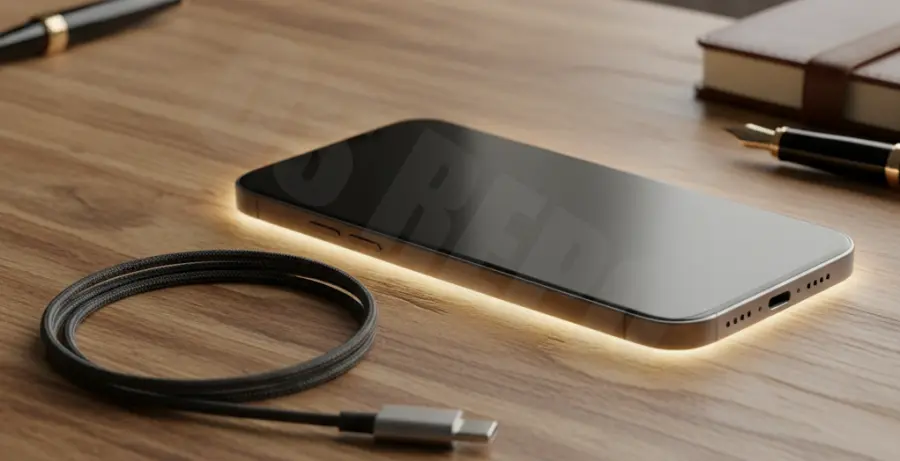
What is the iPhone 16 Pro Black Screen?
The iPhone 16 Pro black screen, often called the “Black Screen of Death,” occurs when the display remains unresponsive despite the device being powered on. You might hear haptic feedback or notifications, but the screen stays dark.
This issue is typically caused by a firmware crash, a failed iOS update, or a specific app conflict. In rarer cases, it may result from hardware damage to the display connector or the internal logic board.
Understanding whether the issue is software or hardware is the first step. Most software-related black screens can be resolved at home without visiting an Apple Store.
Step-by-Step Solutions
1. Perform a Force Restart
A force restart is the most effective way to clear the system memory and reboot a frozen iPhone 16 Pro. It does not erase your data.
Quickly press and release the Volume Up button. Quickly press and release the Volume Down button. Finally, press and hold the Side button until the Apple logo appears on the screen.
2. Charge the Device Properly
Your iPhone 16 Pro might be in a deep discharge state. Even if it was recently charged, a background process might have drained the battery completely.
Plug the device into a high-wattage USB-C power adapter. Leave it for at least 30 minutes. If the charging screen does not appear, try a different cable or check the port for debris.
3. Use Recovery Mode via Mac or PC
If the force restart fails, you can attempt to refresh the iOS firmware using a computer. This can fix corrupted system files that prevent the screen from turning on.
Connect your iPhone to a computer. Open Finder or iTunes. Perform the force restart sequence again, but keep holding the Side button even after the Apple logo appears until you see the Recovery Mode screen.
If you are using a terminal-based utility to check the device status on a Mac, you might use a command similar to this to verify the USB connection:
# Check for connected Apple devices in Recovery or DFU mode
ioreg -p IOUSB -l | grep -i "iPhone"
4. Check for Physical or Liquid Damage
If the steps above do not work, inspect the device for physical trauma. Recent drops or exposure to liquid can damage the OLED panel.
If the device is still under warranty, avoid DIY hardware repairs. Contact Apple Support to schedule an appointment for a professional diagnostic and display replacement.