| Issue | iOS 18 App Store Sign In Not Working / Login Failed |
|---|---|
| Common Causes | Beta software bugs, Apple Server outages, Network configuration, Incorrect Date & Time. |
| Quick Fixes | Check System Status, Toggle Airplane Mode, Sign out of Media & Purchases, Reset Network Settings. |
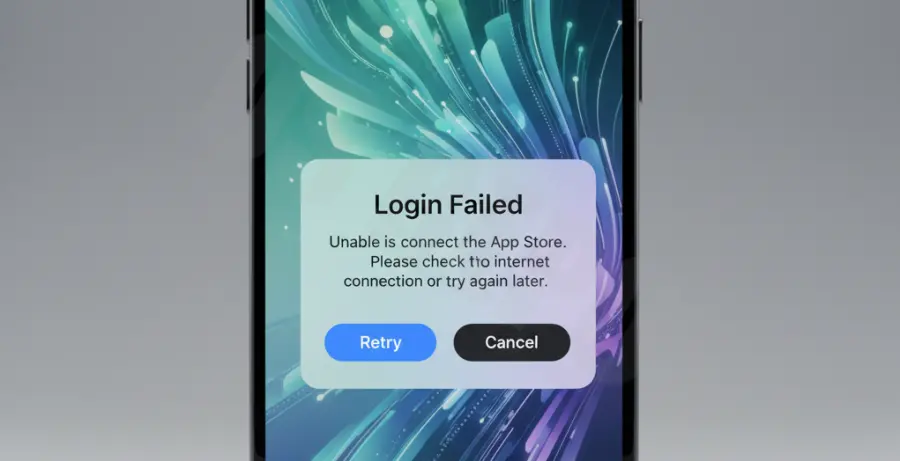
What is iOS 18 App Store Sign In Not Working?
The “iOS 18 App Store sign in not working” error typically occurs when a user attempts to download apps or access their account settings after updating to the latest firmware. This issue often manifests as a “Login Failed” popup or a spinning loading icon that never resolves.
Since iOS 18 is a major update, certain background processes related to Apple ID authentication may hang. This can be caused by corrupted cache files or temporary synchronization issues with Apple’s authentication servers.
Users may also encounter this if their device’s regional settings or network protocols conflict with the new security layers introduced in iOS 18. Identifying whether the fault lies with the device or the server is the first step toward a fix.
Step-by-Step Solutions
1. Check Apple System Status
Before changing your settings, ensure the problem isn’t on Apple’s end. Visit the official Apple System Status page. Look for “App Store” and “Apple ID.” If the icons are not green, you must wait for Apple to resolve the outage.
2. Refresh Media & Purchases
Often, the sign-in loop is tied specifically to the App Store’s sub-account rather than the entire iCloud account. Navigate to Settings > [Your Name] > Media & Purchases. Sign out, restart your iPhone, and sign back in.
3. Reset Network Settings
Network glitches are a primary cause for iOS 18 login failures. Resetting these settings flushes DNS caches and resets Wi-Fi/Cellular configurations. Note that this will delete saved Wi-Fi passwords.
# Navigation Path for Manual Reset:
Settings > General > Transfer or Reset iPhone > Reset > Reset Network Settings
4. Verify Date and Time Settings
Apple’s security certificates require your device time to match the server time exactly. If your time is manual and incorrect, the App Store will reject your login request for security reasons.
Go to Settings > General > Date & Time and ensure “Set Automatically” is toggled on. If it is already on, toggle it off and back on to refresh the sync.
5. Force Restart Your Device
A force restart clears temporary software glitches that a standard power-off might miss. Quickly press and release Volume Up, then Volume Down, and then hold the Side Button until the Apple logo appears.